

Every feature, live today.
All 50, in seven groups, each with the real screen where one exists.
Prices on the screens are the demo studio's own settings, not StudioMaster's price.
Booking: what a studio's customers get
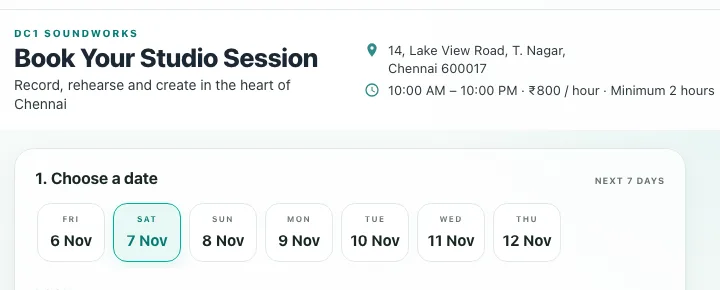
The studio's own booking page on its own web address (yourstudio.aimastersindia.com), with the studio's name and logo.
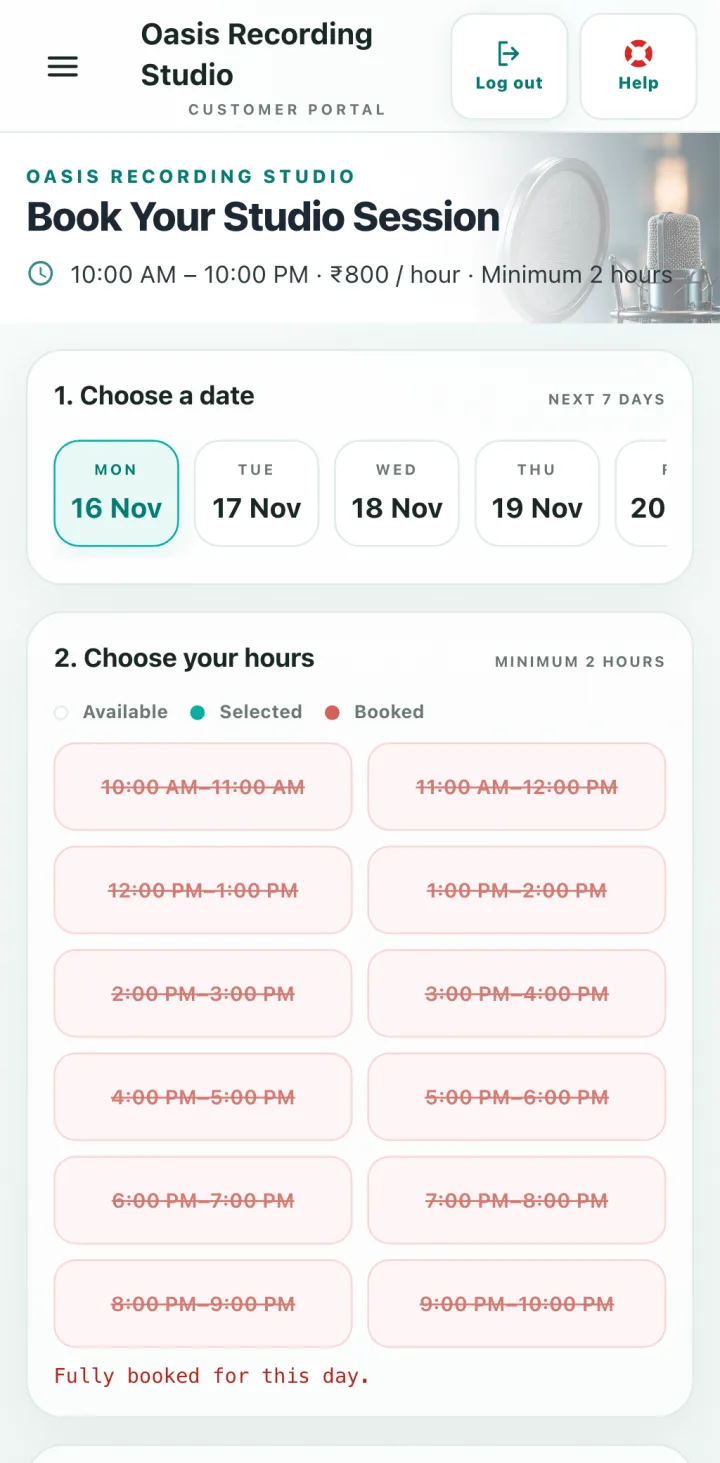
Screens: Booking page header, Phone: booking page
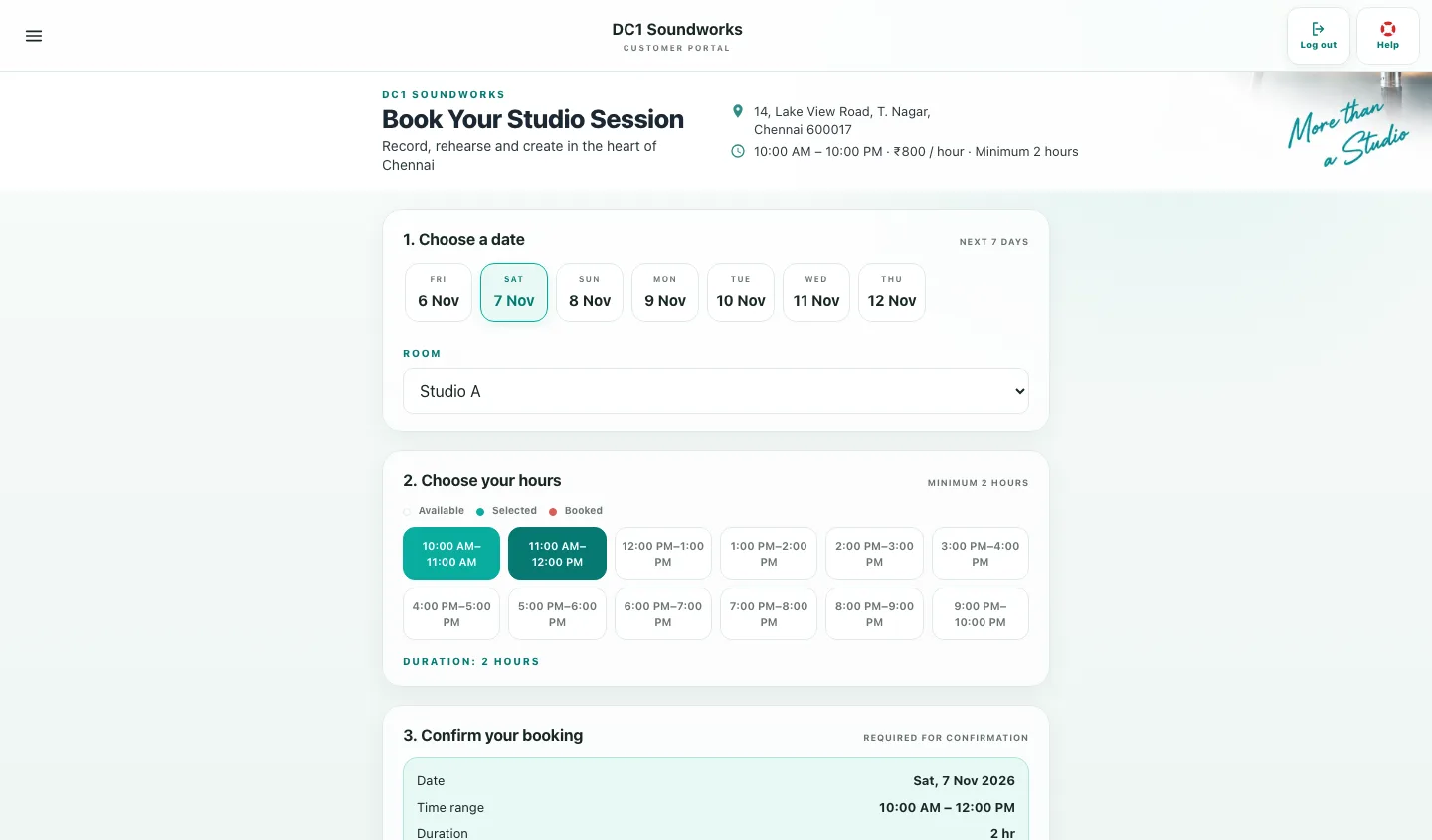
A header that sells the studio: a 120 px banner photo, tagline, address, opening hours, hourly price and minimum booking. Empty lines are hidden.
Screens: Phone: booking page, Booking page header
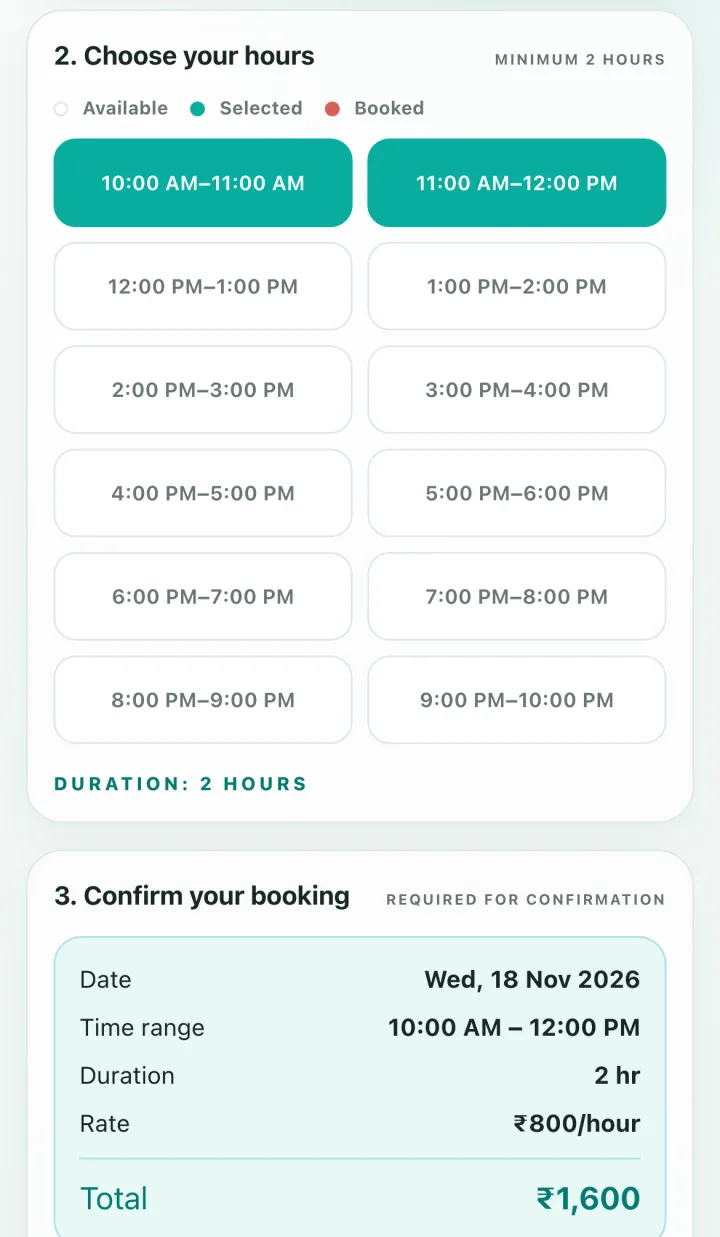
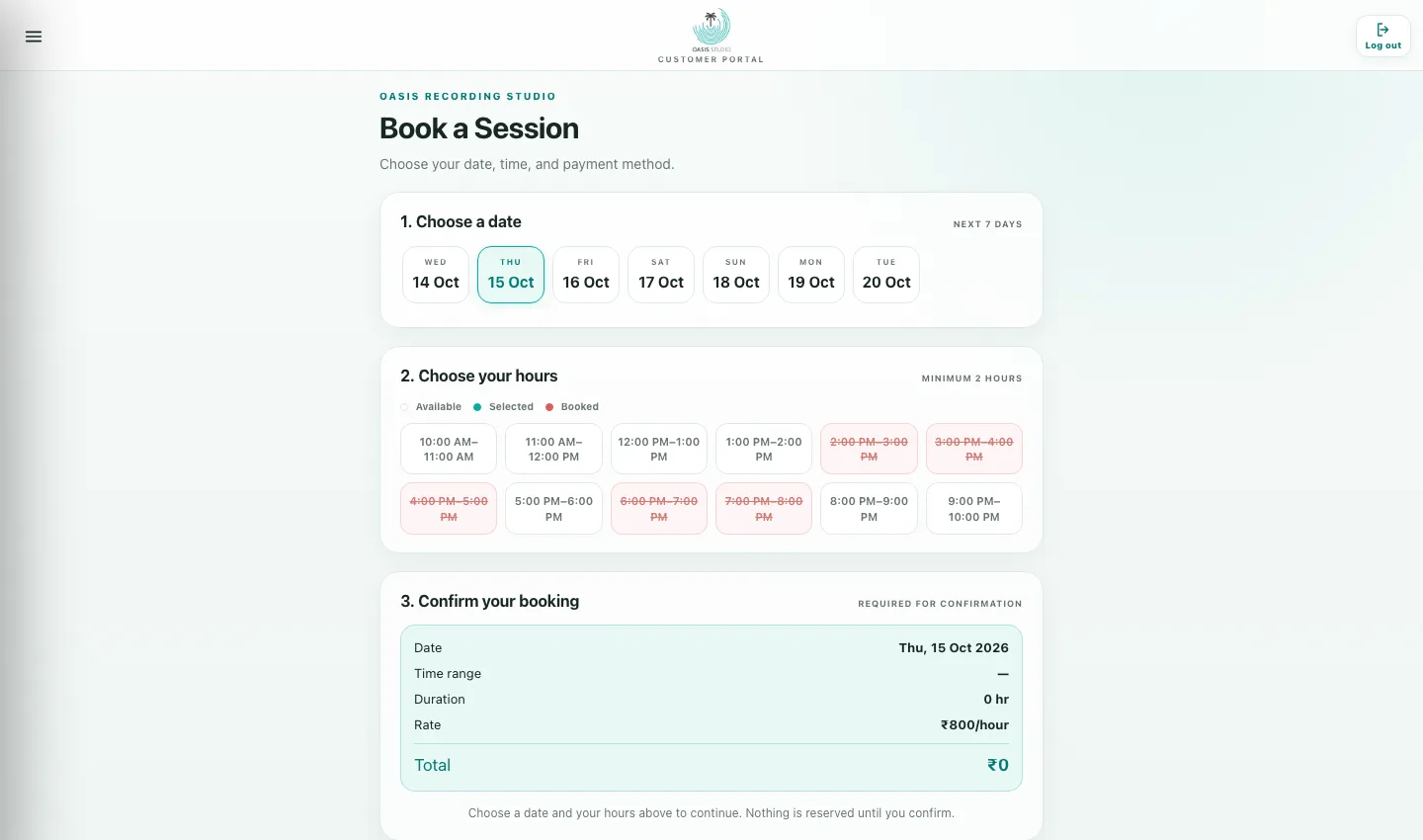
Live availability. Pick a date in the next 7 days, a room, then hours. Free, selected and booked hours are colour-coded, and booked or past hours cannot be picked.
Screen: Hours and payment
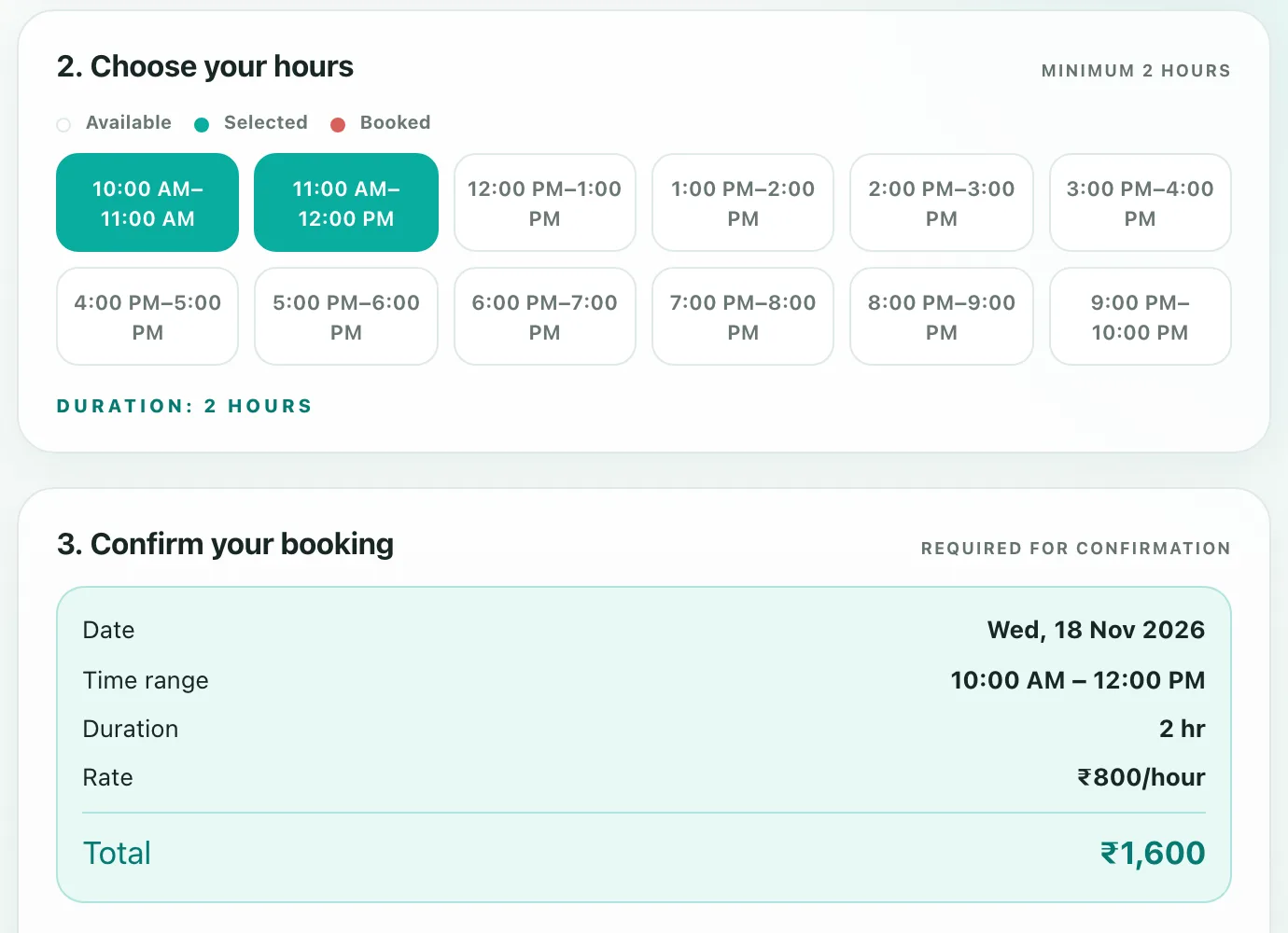
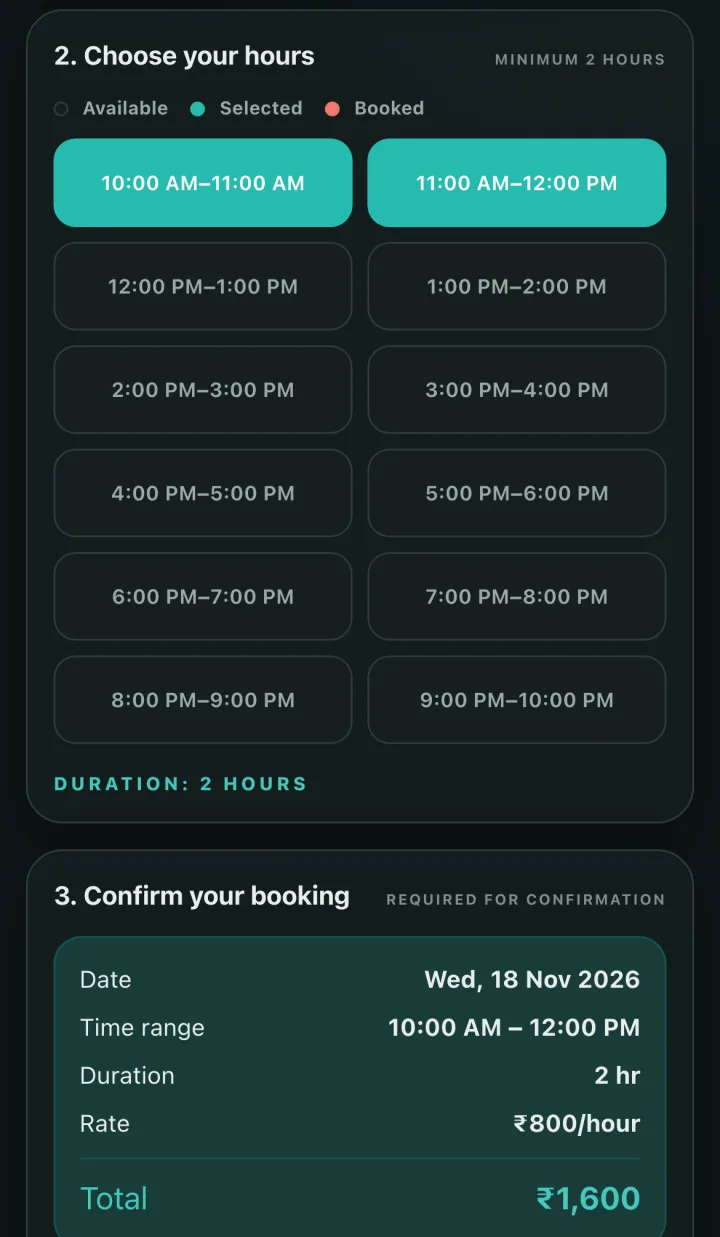
One tap books the minimum. At a 2-hour studio, tapping 10 selects 10 to 12, and tapping 12 selects 12 to 2. Tapping the hour just before or after adds it. If the next hour is taken, the 2 hours end at the tapped hour instead.New
Screens: One tap = 2 hours, Phone: one tap = 2 hours
The price as you pick. Date, time range, duration, hourly rate and total update with every tap.
Screens: One tap = 2 hours, Hours and payment
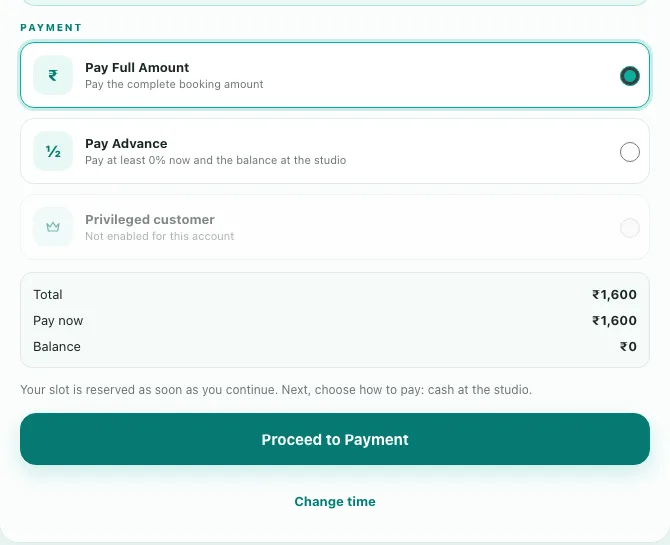
Pay in full, pay an advance, or book as a privileged customer. The advance has a minimum percentage set by the studio. Privileged customers (chosen by the studio) can book without paying first.
Screen: Ways to pay
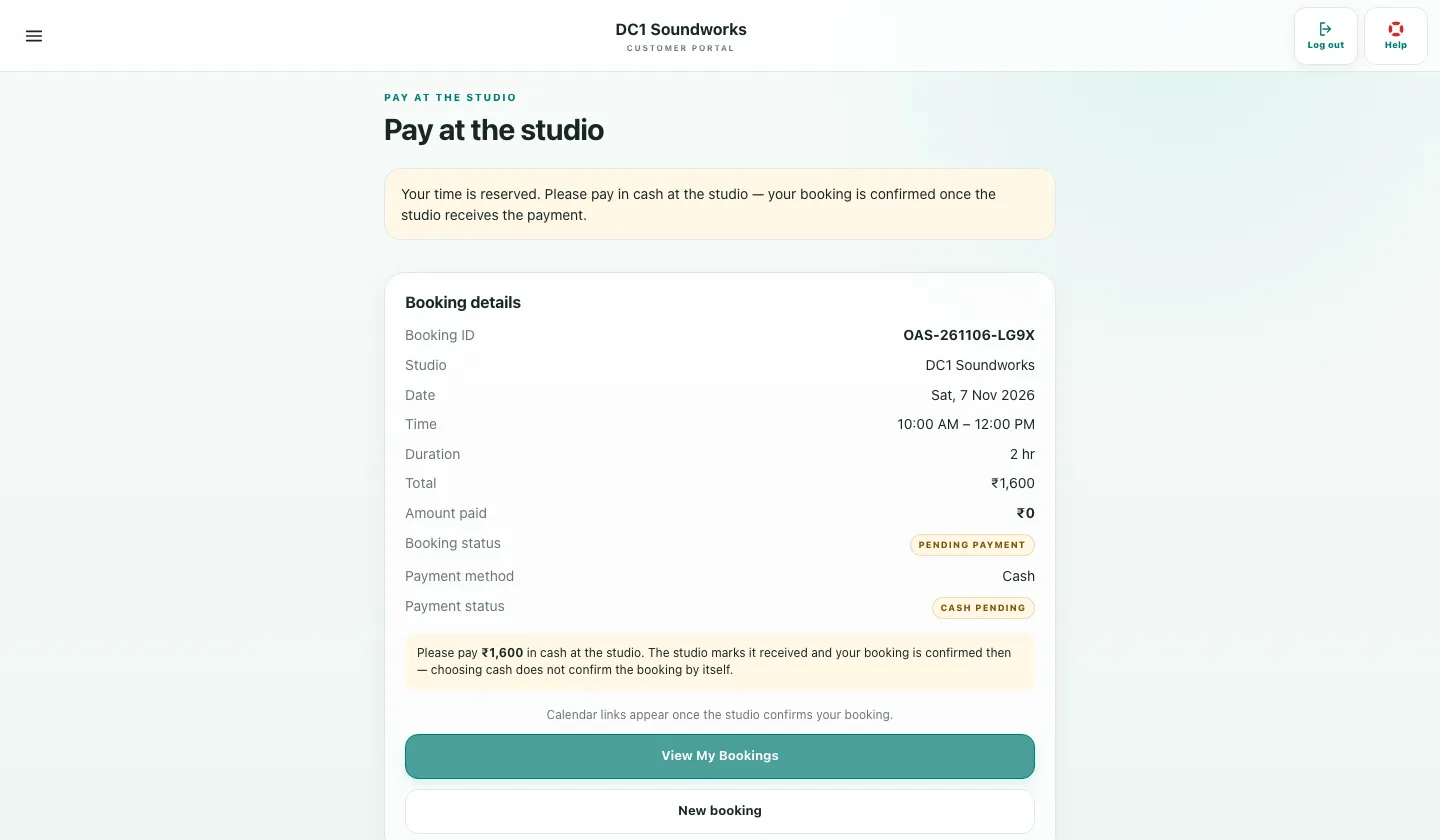
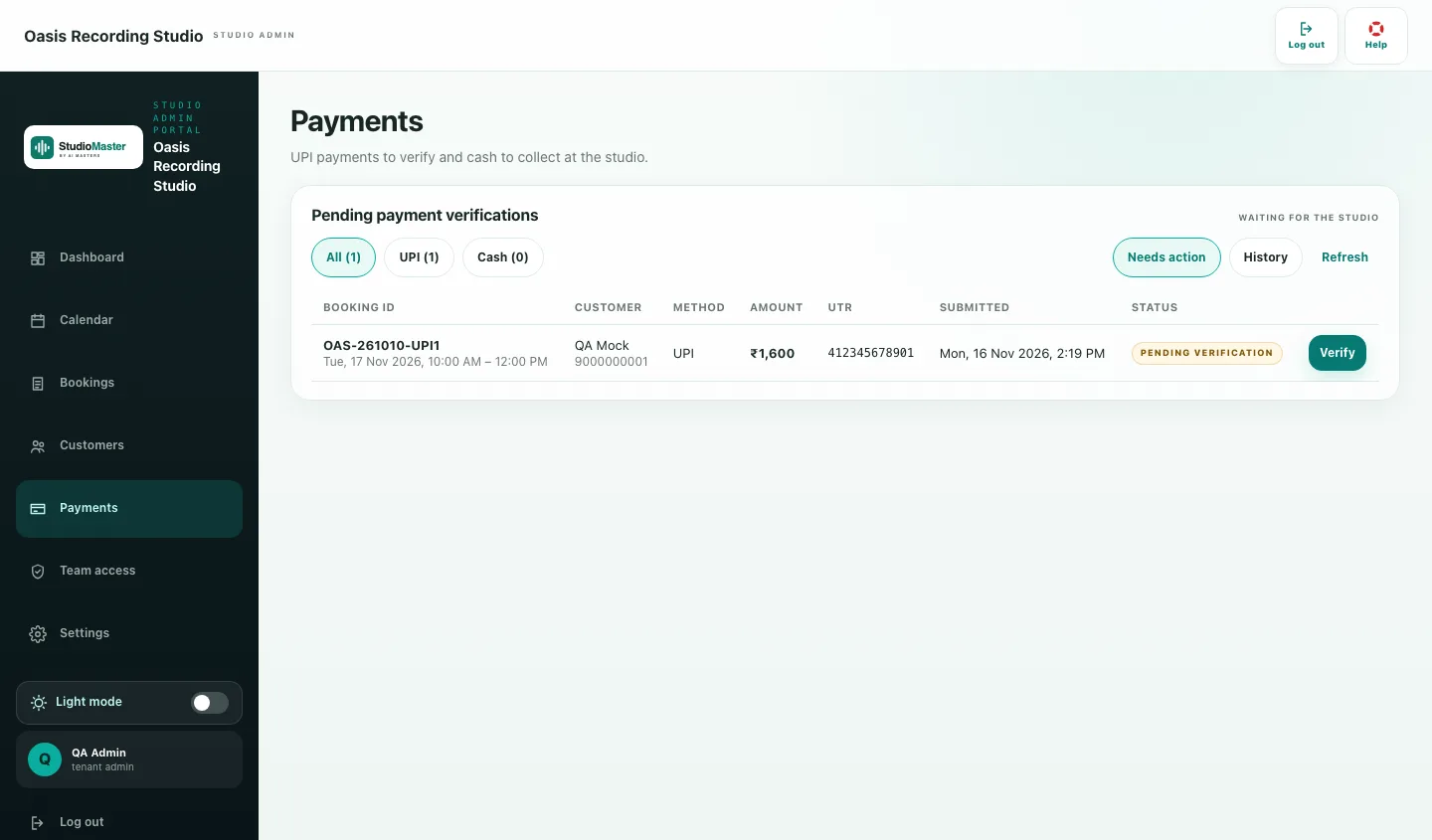
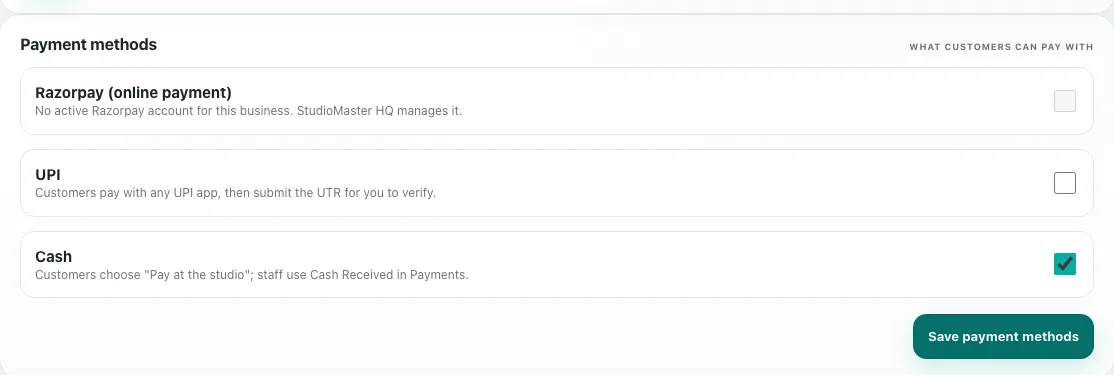
The studio's payment methods only: online payment through Razorpay, UPI to the studio's own UPI ID (the customer enters the UTR so staff can check it), or cash at the studio. Each studio turns each one on or off.
Screens: Ways to pay, Booking made, pay at studio, Payments to check
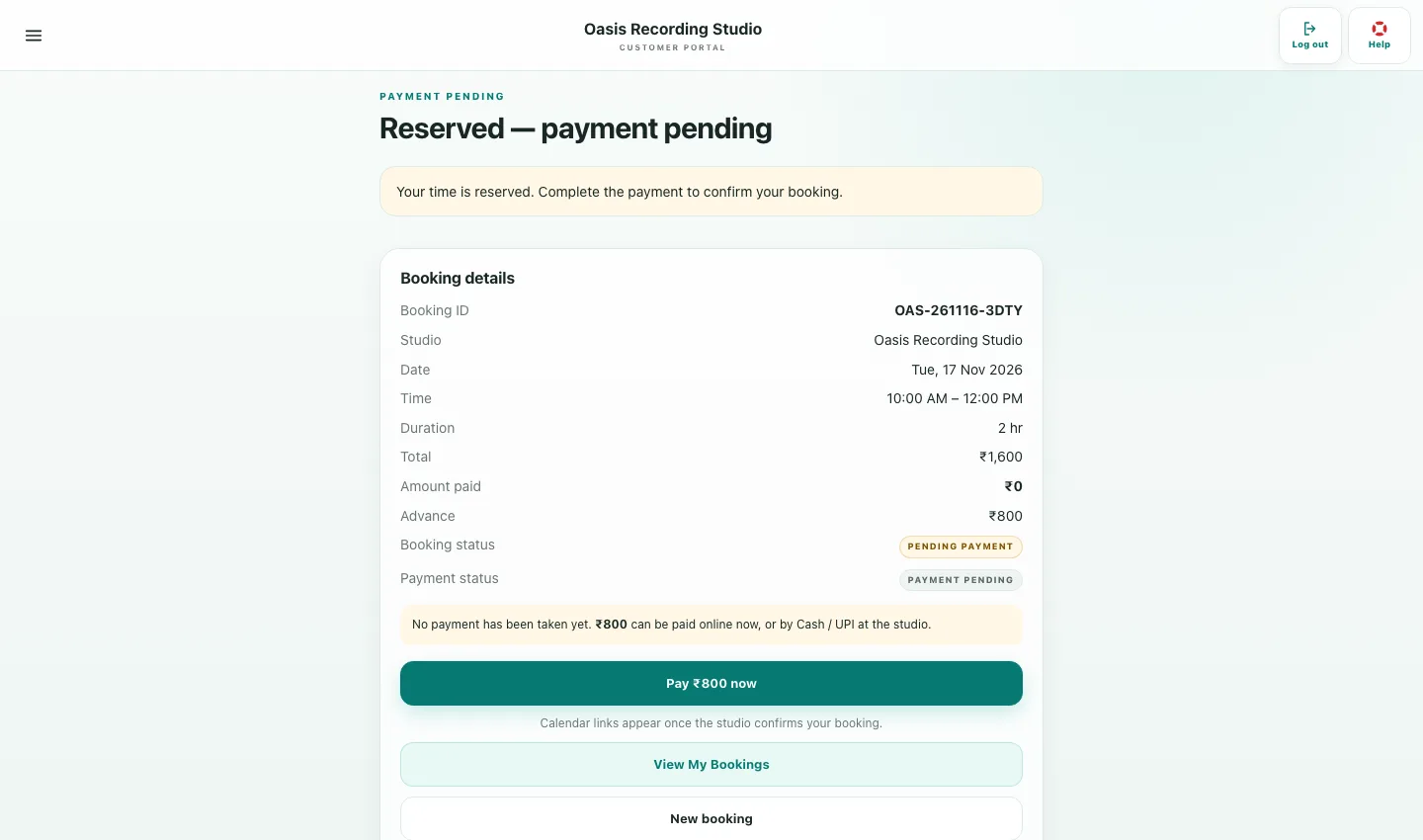
A booking ID per studio, with the studio's own prefix (for example DC1-261116-93SU).
Screens: Booking made, pay at studio, Reserved, payment pending
Clear status. "Reserved, payment pending" or "Confirmed", in plain words, never a vague state.
Screens: Reserved, payment pending, Booking made, pay at studio
Add to calendar. Add to Google Calendar, or download a calendar file for any other calendar.
Screen: Booking made, pay at studio
No surprise hold. Choosing hours reserves nothing. The booking is made with one Confirm click. Online bookings left unpaid are released automatically, so slots free up.
Screen: Ways to pay
Signing in: the studio chooses how
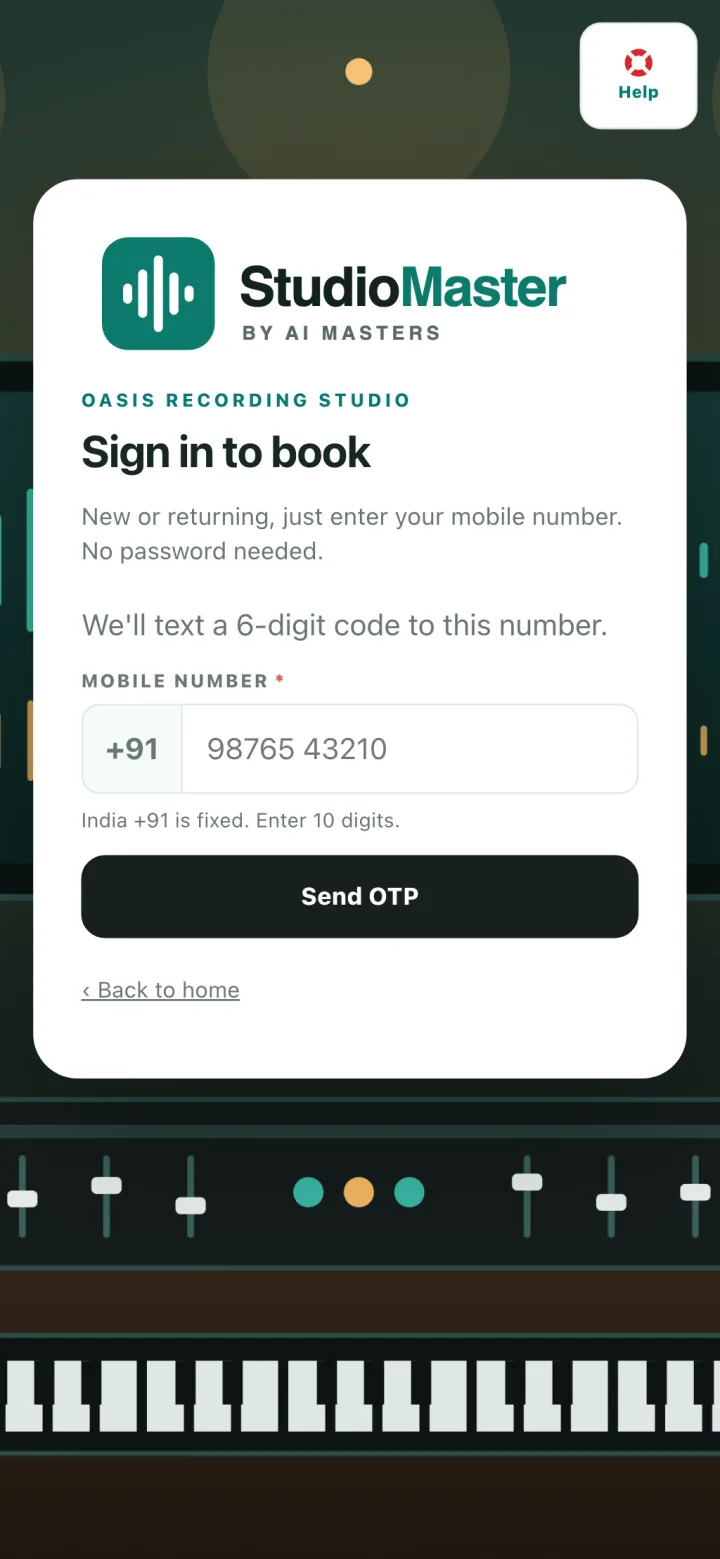
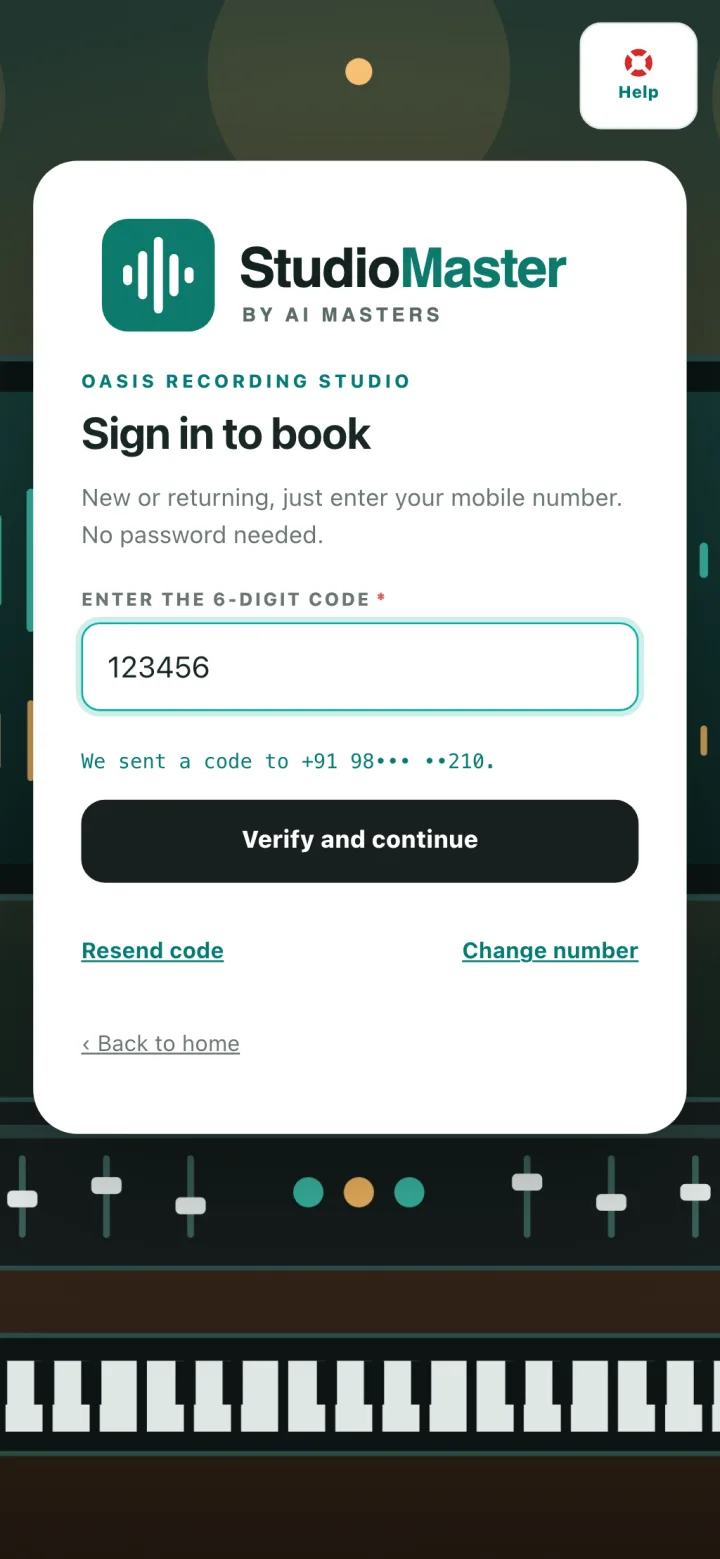
Mobile number and an SMS code, no password. Enter the mobile number, type the 6-digit code, and you are in.
Screens: Phone: enter mobile, Phone: enter code
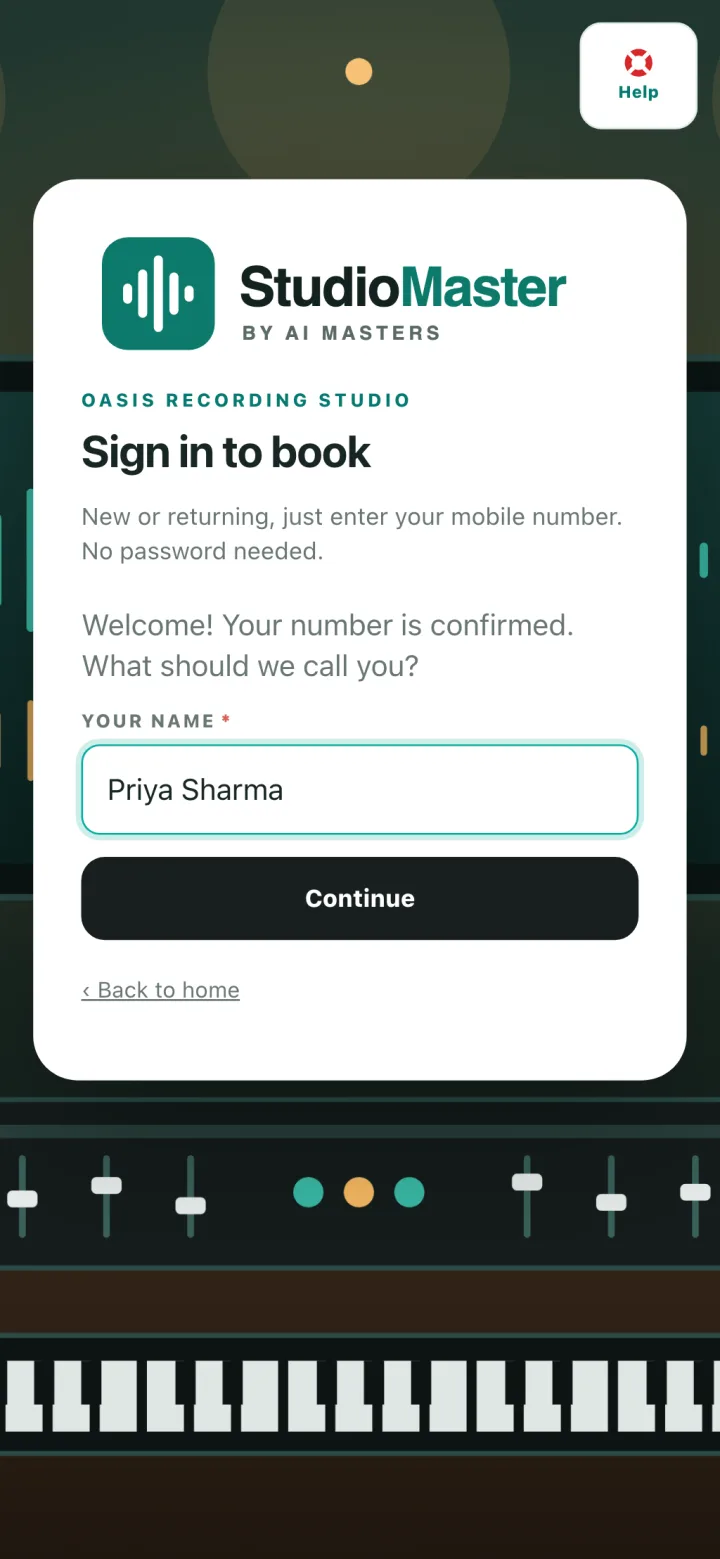
New customers give only their name after the code (studios that use mobile + code).
Screen: Phone: new customer
Straight to booking. After the right code, a customer who already has an account is signed in and taken to the booking page, with no extra screens.New
Screens: Phone: enter code, Phone: booking page
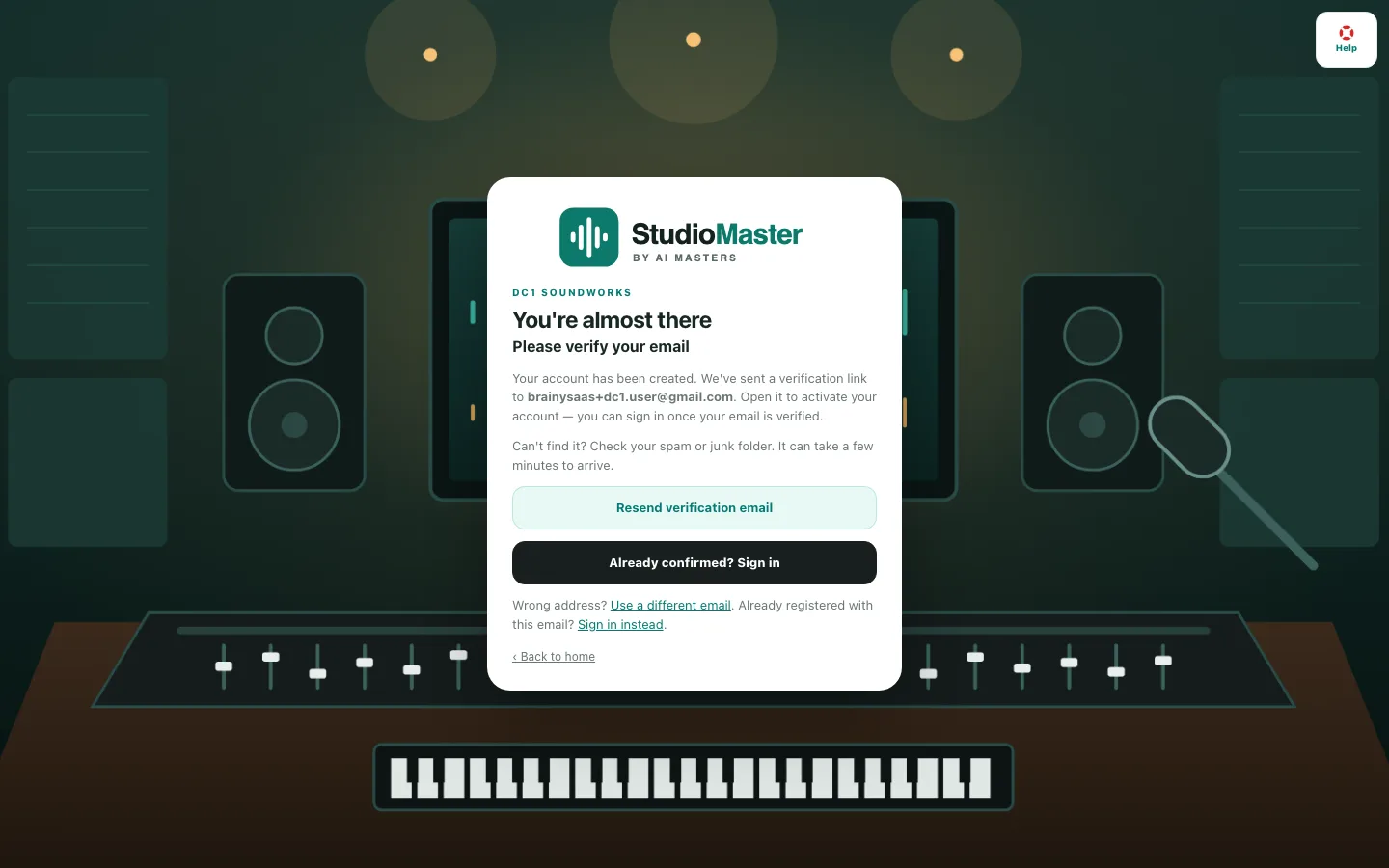
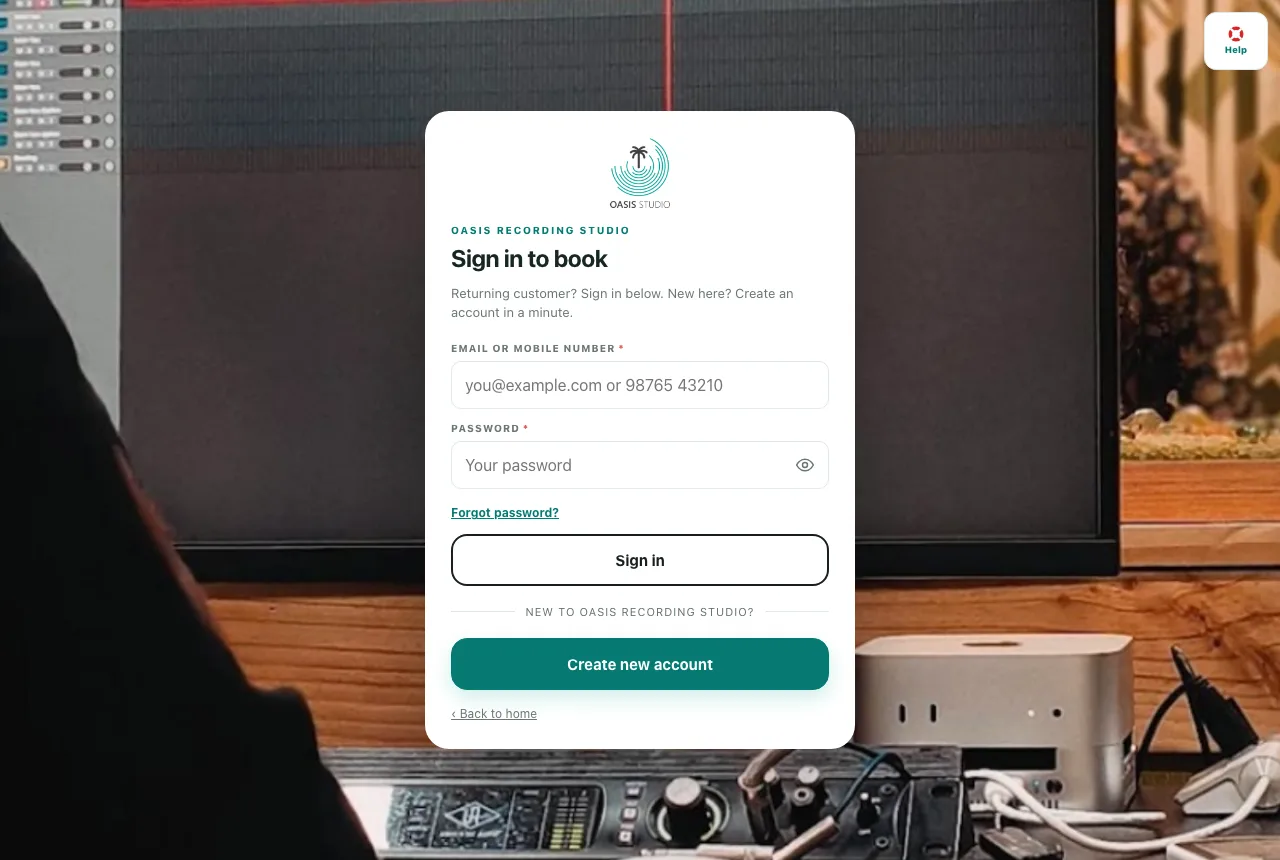
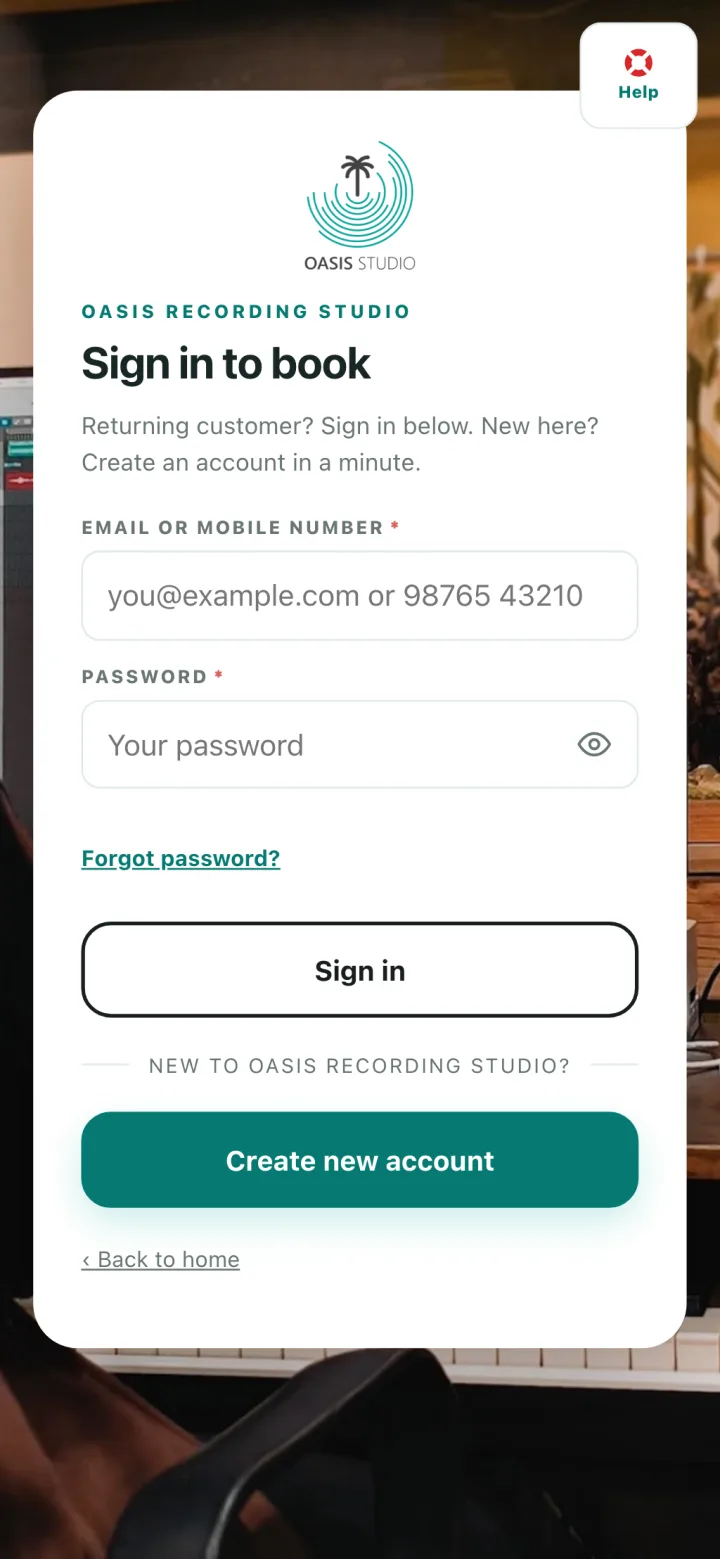
Or email / mobile with a password, with the email confirmed by a one-time code.
Screen: Email sign-up
The studio picks the methods: password, or mobile + SMS code, each on or off.
Screen: Sign-in methods
The studio picks when customers sign in: before they see the booking page, or only when they confirm a booking (they can look at hours first).
A sign-in page in the studio's own look: its logo, name and a photo.
Forgot password by a code to the mobile or to the email.
Indian SMS gateway for the codes.

After booking: the customer's own space
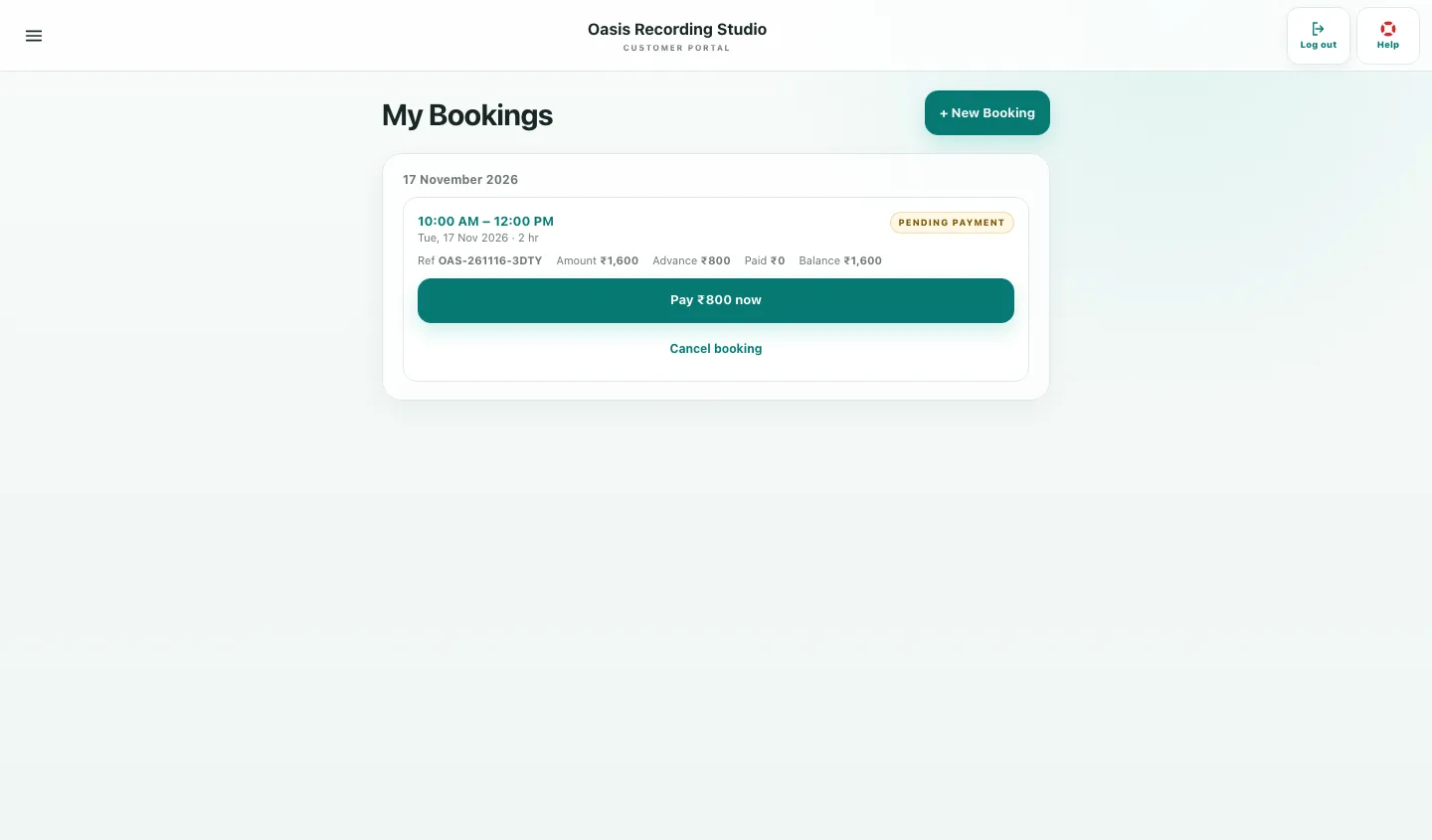
My Bookings. Upcoming and past bookings, with the booking ID, status and amount. Pay later from here.
Screen: My Bookings
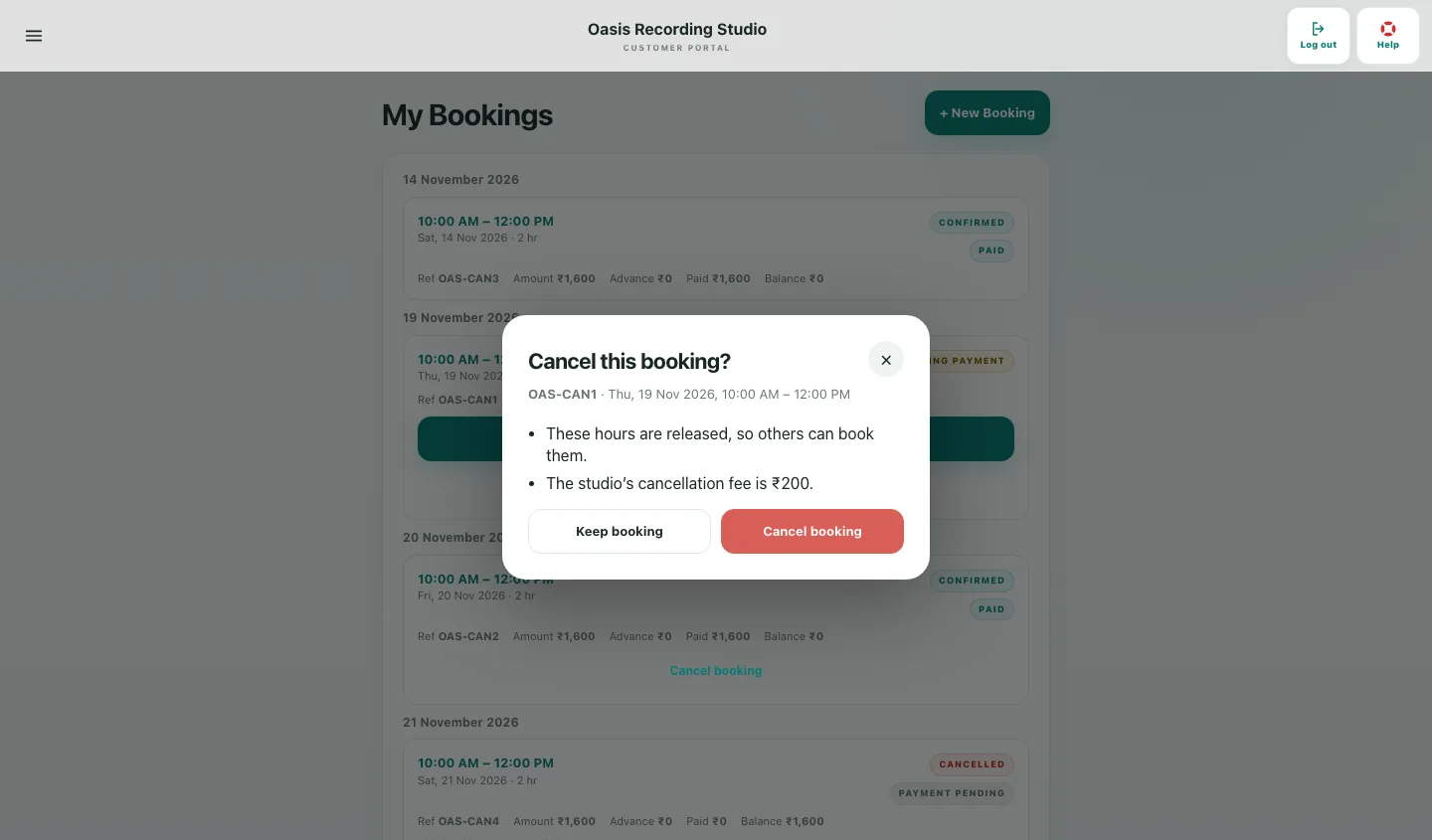
Cancel a booking. The customer sees the cancellation fee before confirming.
Screen: Customer cancels
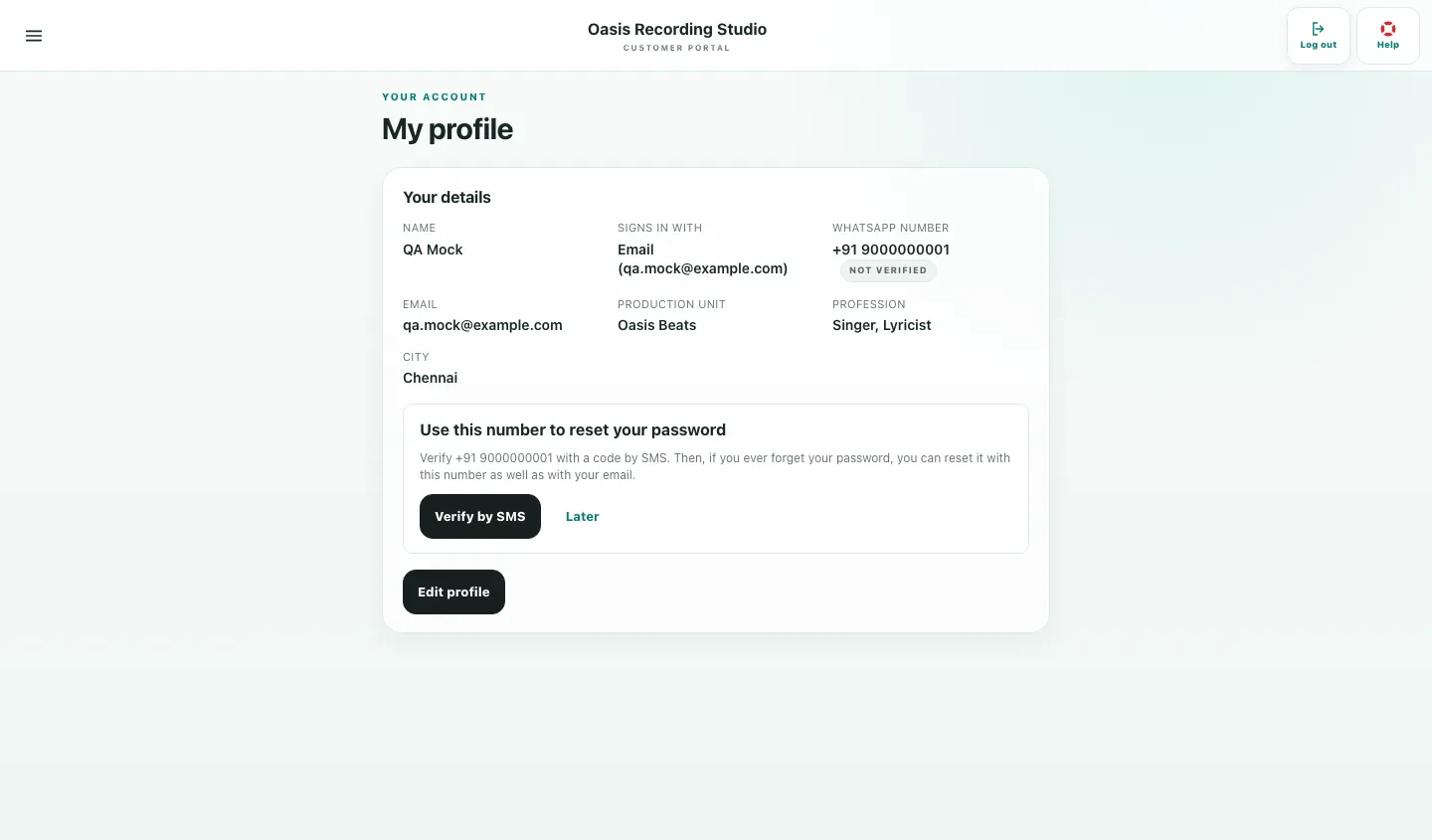
My Profile. Name, city and profession, plus a backup mobile and a backup email to recover the account.
Screen: My Profile
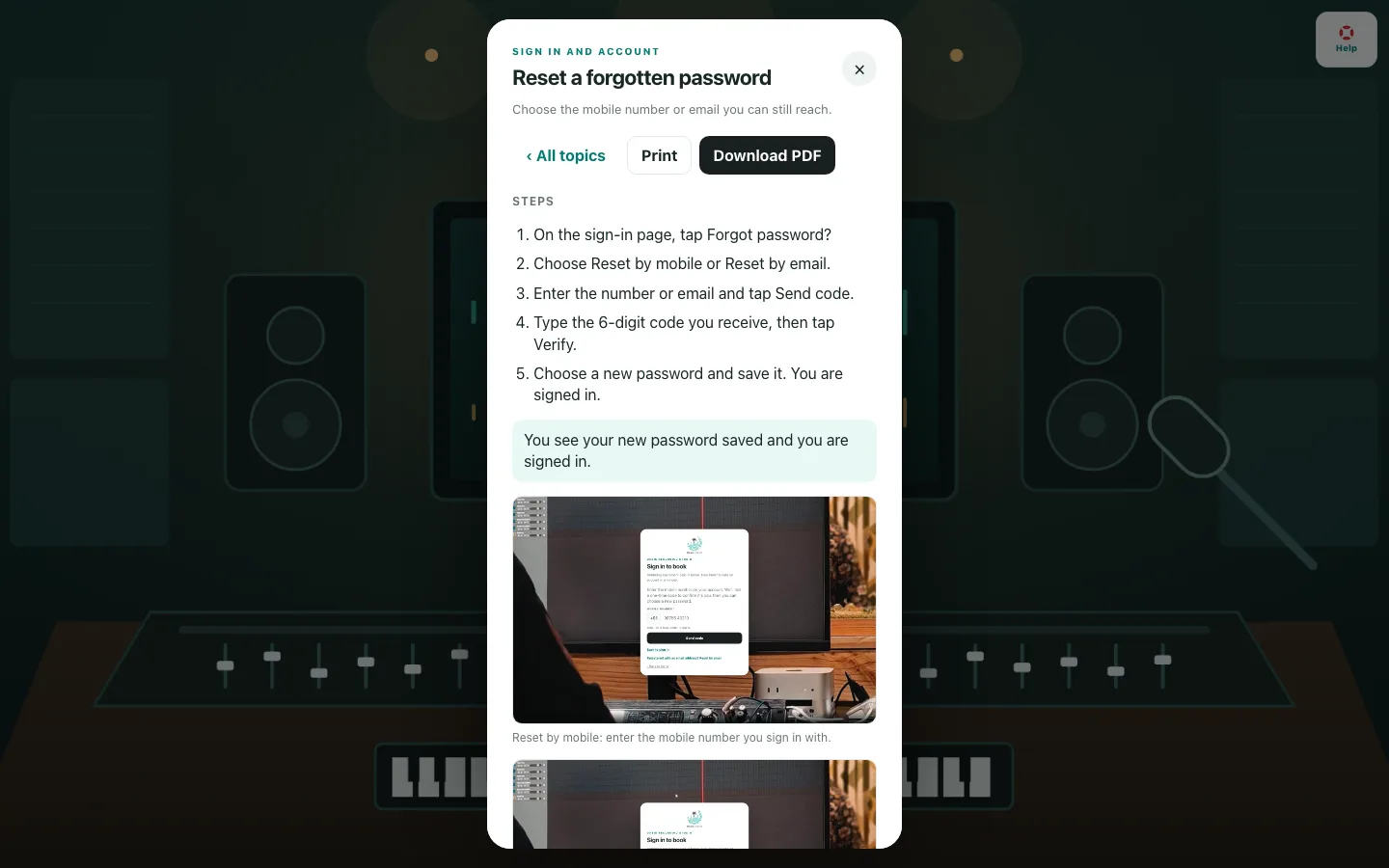
Built-in help. Step-by-step guides with pictures that can be printed or saved as PDF.
Screen: Help
Made for phones. Works in any phone browser, with no app to install. Light and dark mode.
Screens: Phone: enter mobile, Phone: enter code, Phone: new customer, Phone: booking page, Phone: one tap = 2 hours, Phone, dark
Studio admin: running the studio
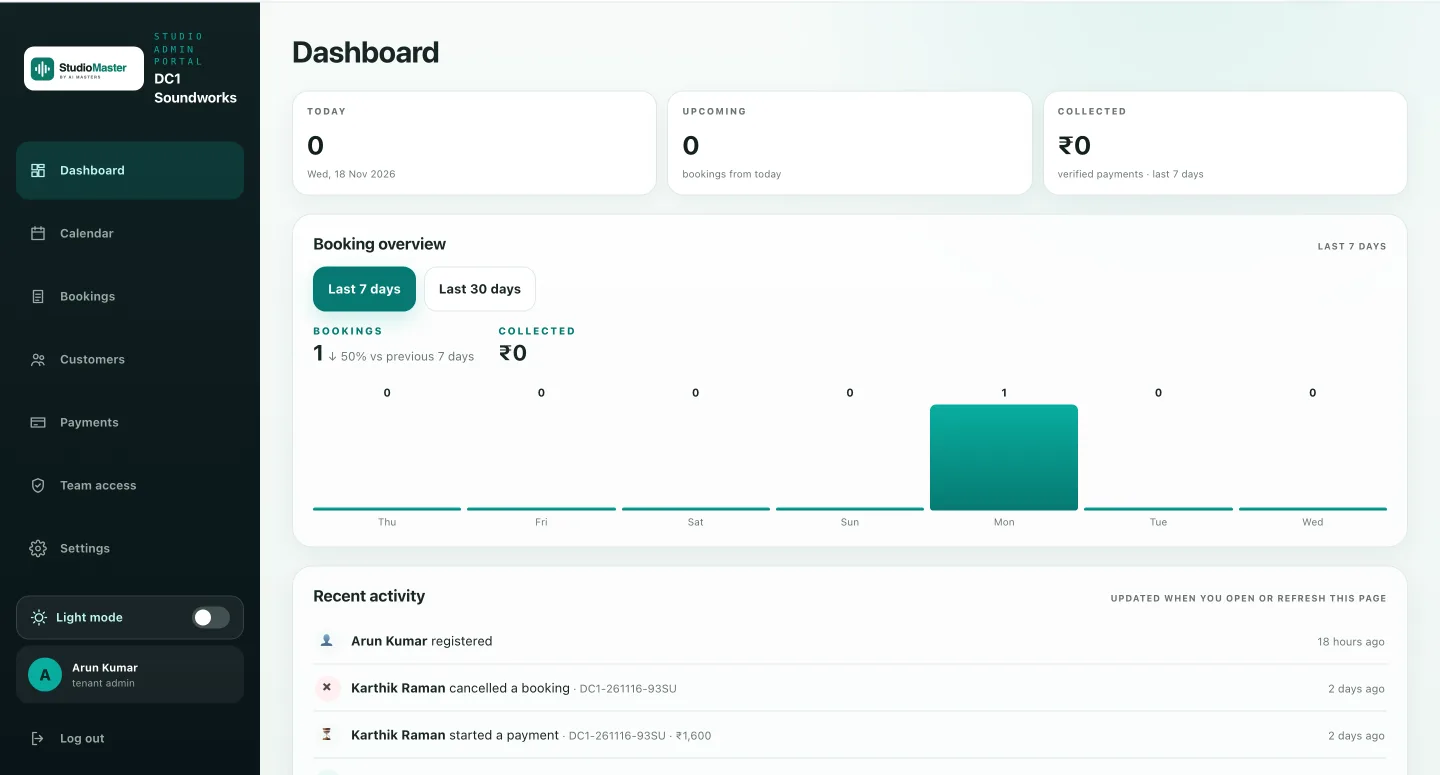
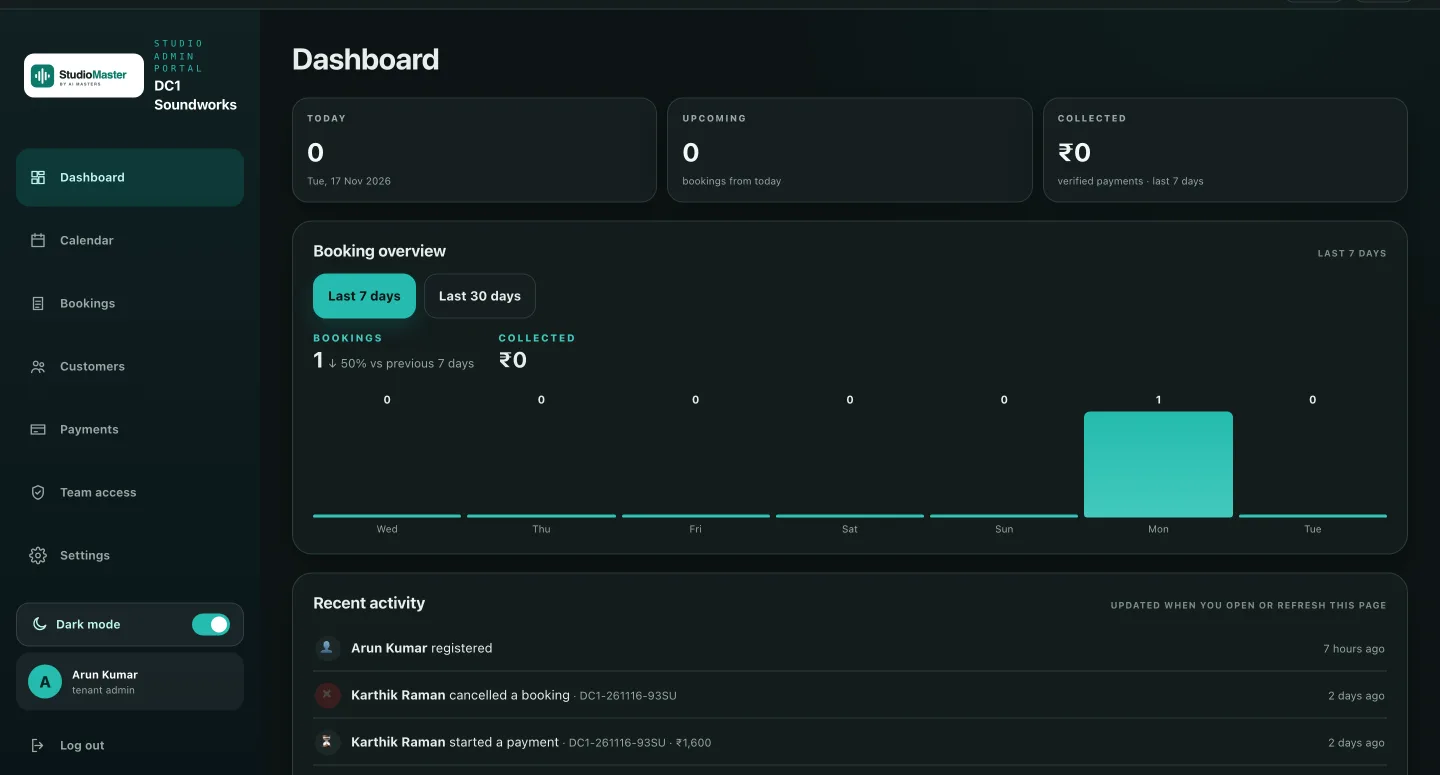
Dashboard. Today's bookings, upcoming bookings, money collected (verified, last 7 days), a 7- or 30-day booking chart and recent activity.
Screens: Admin dashboard (light), Dashboard, dark
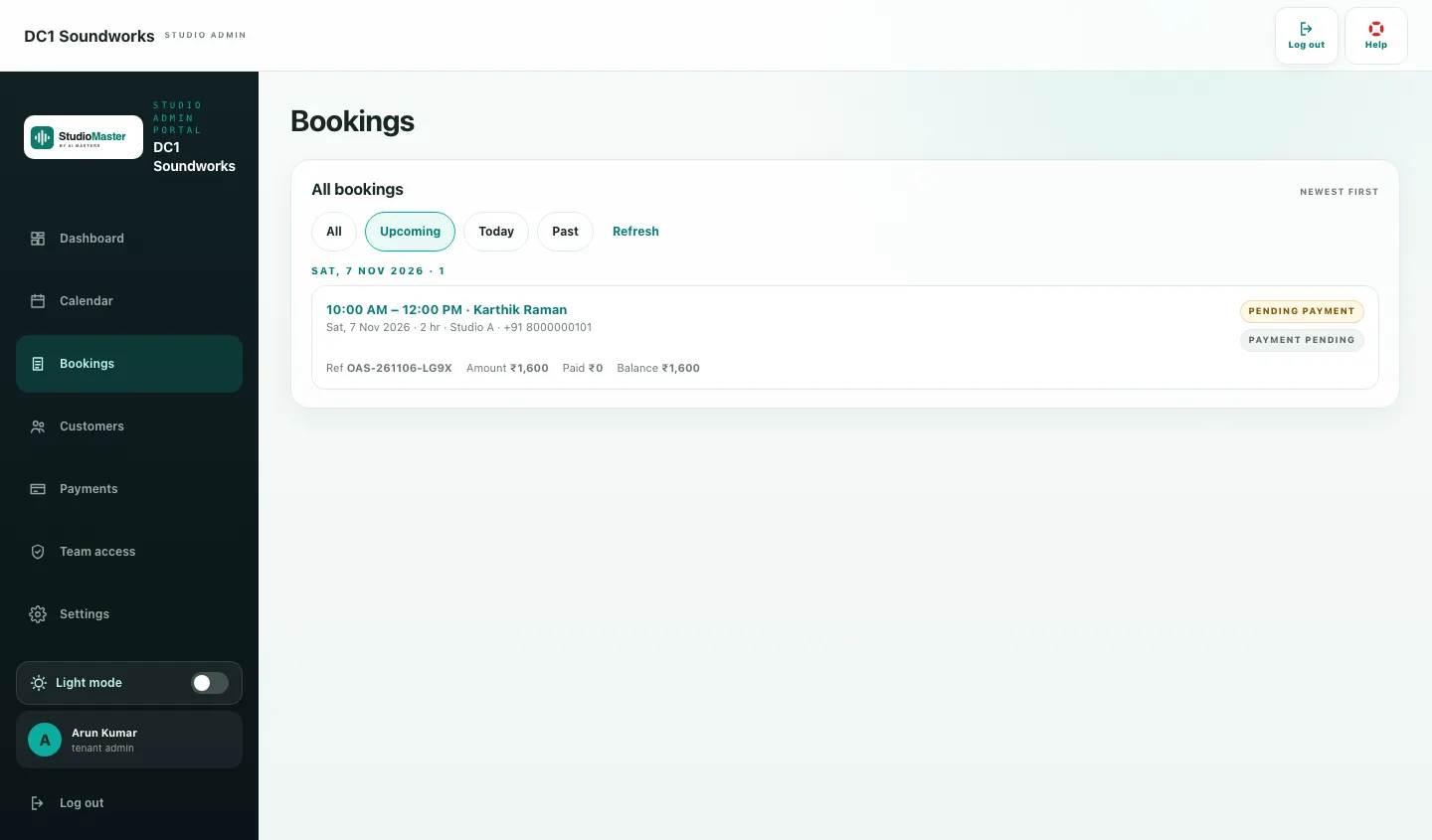
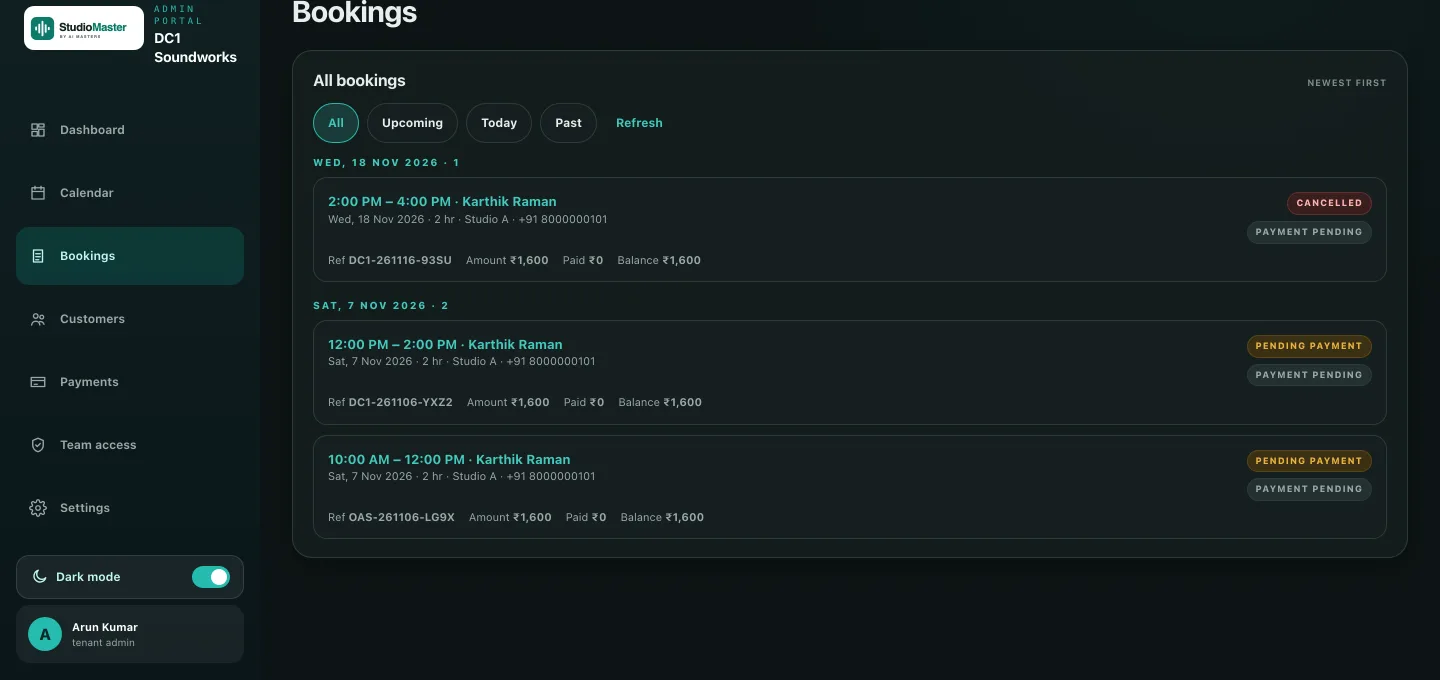
Bookings list. All, upcoming, today and past, with the payment status on every booking.
Screens: Bookings list, Bookings, dark
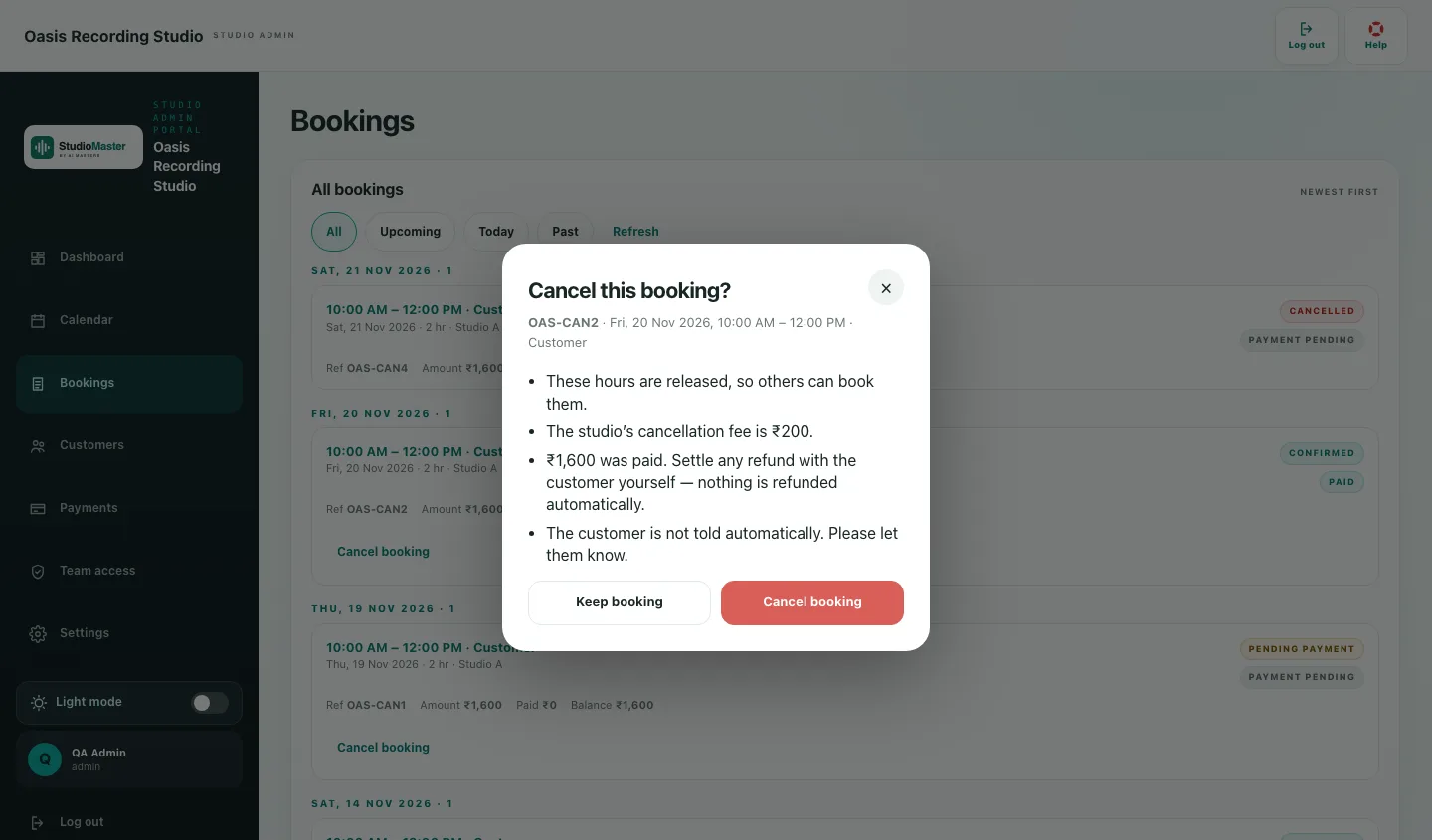
Staff can cancel a booking, with the same fee rules.
Screen: Staff cancel
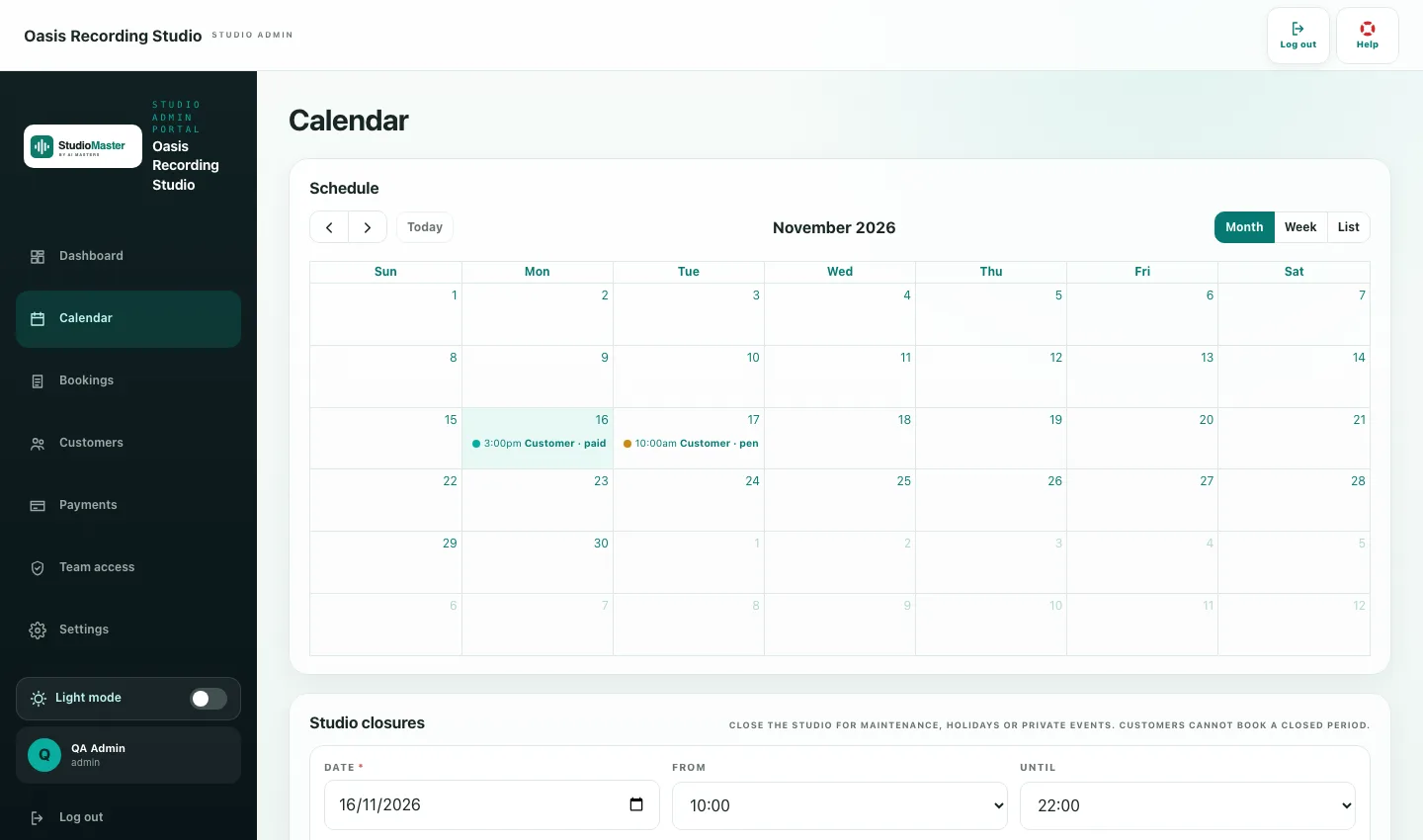
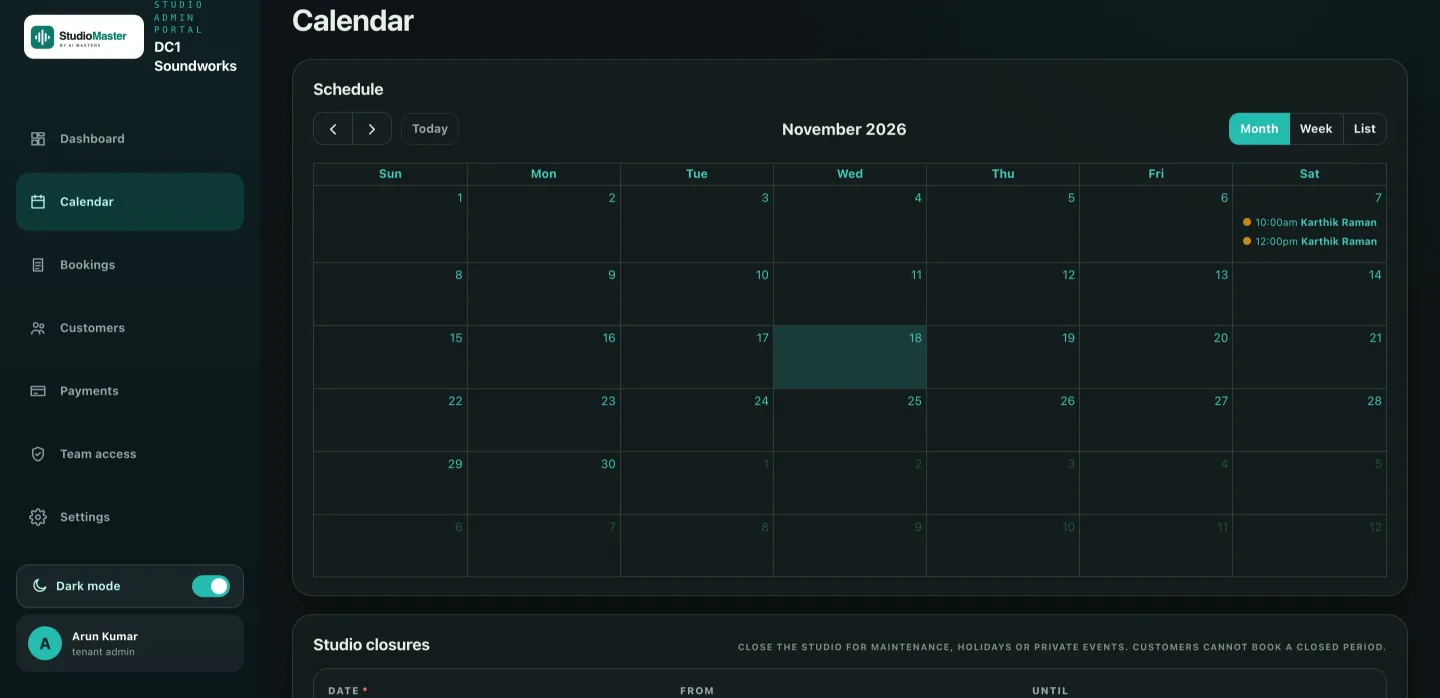
Calendar. Month, week and list views.
Screens: Calendar and closures, Calendar, dark
Studio closures. Close for maintenance or a holiday; those hours are blocked for customers straight away.
Screens: Calendar and closures, Closed hours on the booking page
Payments to check. Verify UPI payments against the UTR, and mark cash as received.
Screen: Payments to check
Customers. Every customer with their booking history and totals; mark a customer as privileged.
No public screen: it shows real phone numbers.
Team access. Invite staff by email (they choose their own password), see who has access and the role of each, and an activity list of access changes.
Light and dark mode for staff, with one switch.
Screen: Dashboard, dark
Studio admin: settings the studio controls
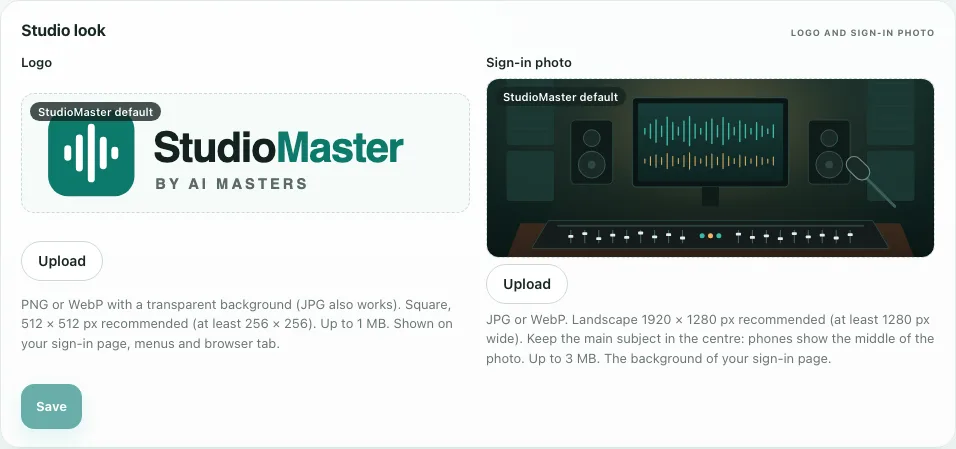
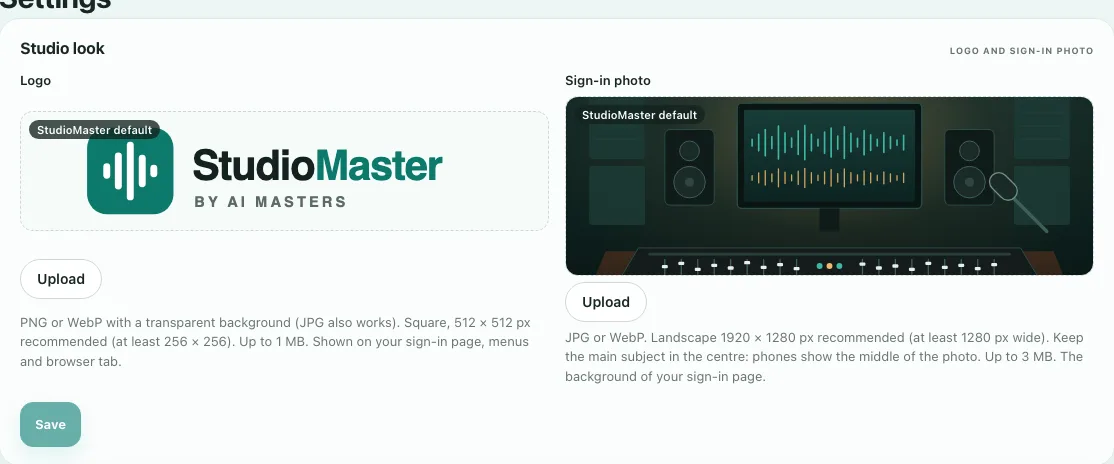
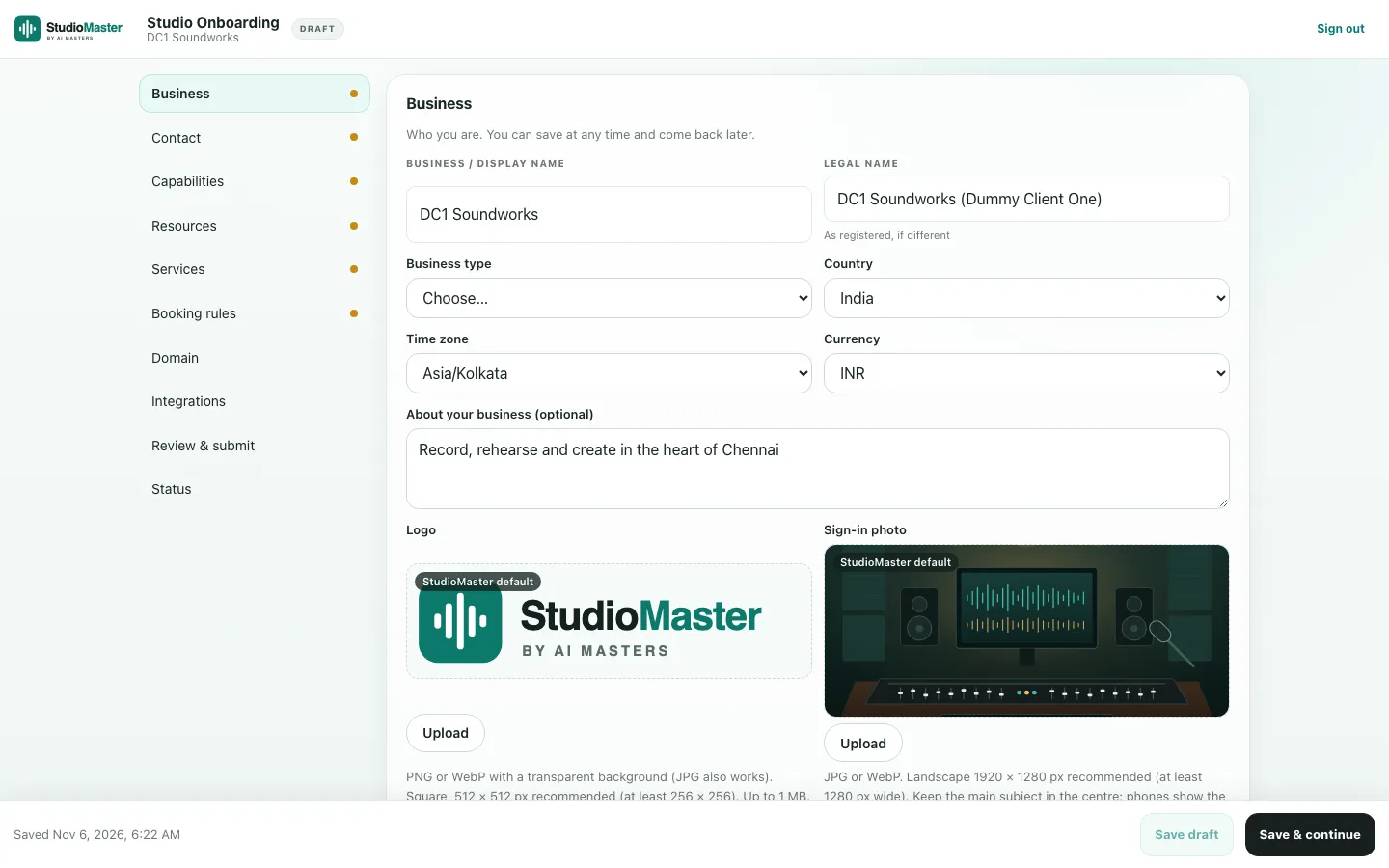
Studio look. Upload the logo and the sign-in photo.
Screens: Logo and photo, Studio look
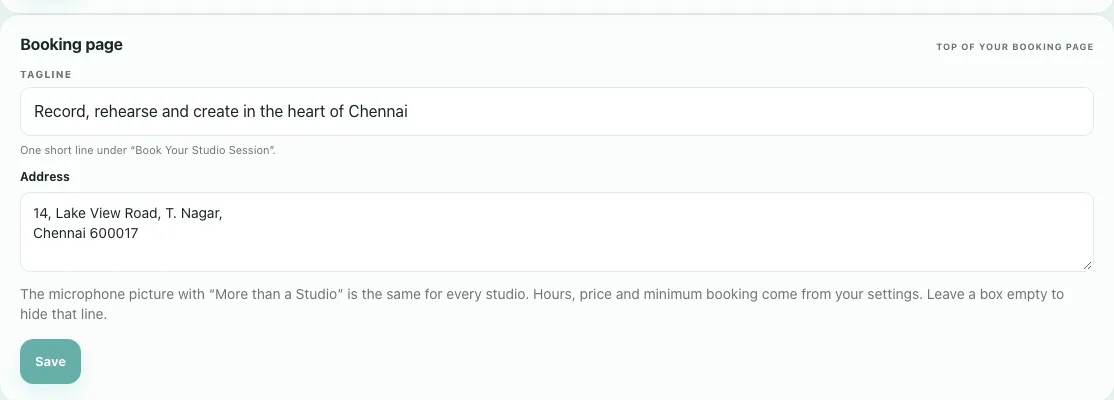
Booking page header. Tagline and address for the booking page.
Screen: Booking page settings
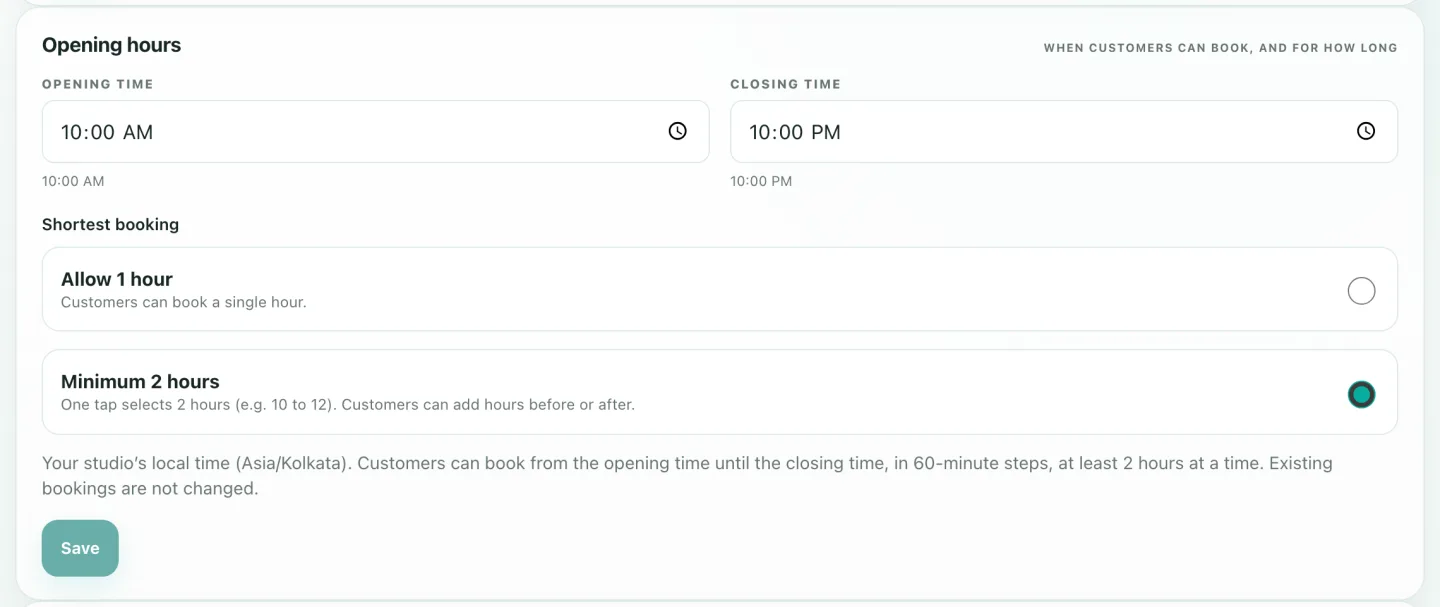
Opening hours. Opening and closing time, in the studio's local time, shown with AM/PM. New hours apply to new bookings straight away; existing bookings never change.
Screen: Shortest booking setting
Shortest booking: Allow 1 hour, or Minimum 2 hours. The server enforces it too, so a shorter booking cannot be made.New
Screen: Shortest booking setting
Payment methods. Razorpay, UPI and cash, each on or off.
Screen: Payment methods
Customer sign-in methods (feature 16) and when customers sign in (feature 17).
Screen: Sign-in methods
No ghost bookings. Unpaid online bookings are released automatically every 10 minutes.
Getting a studio started
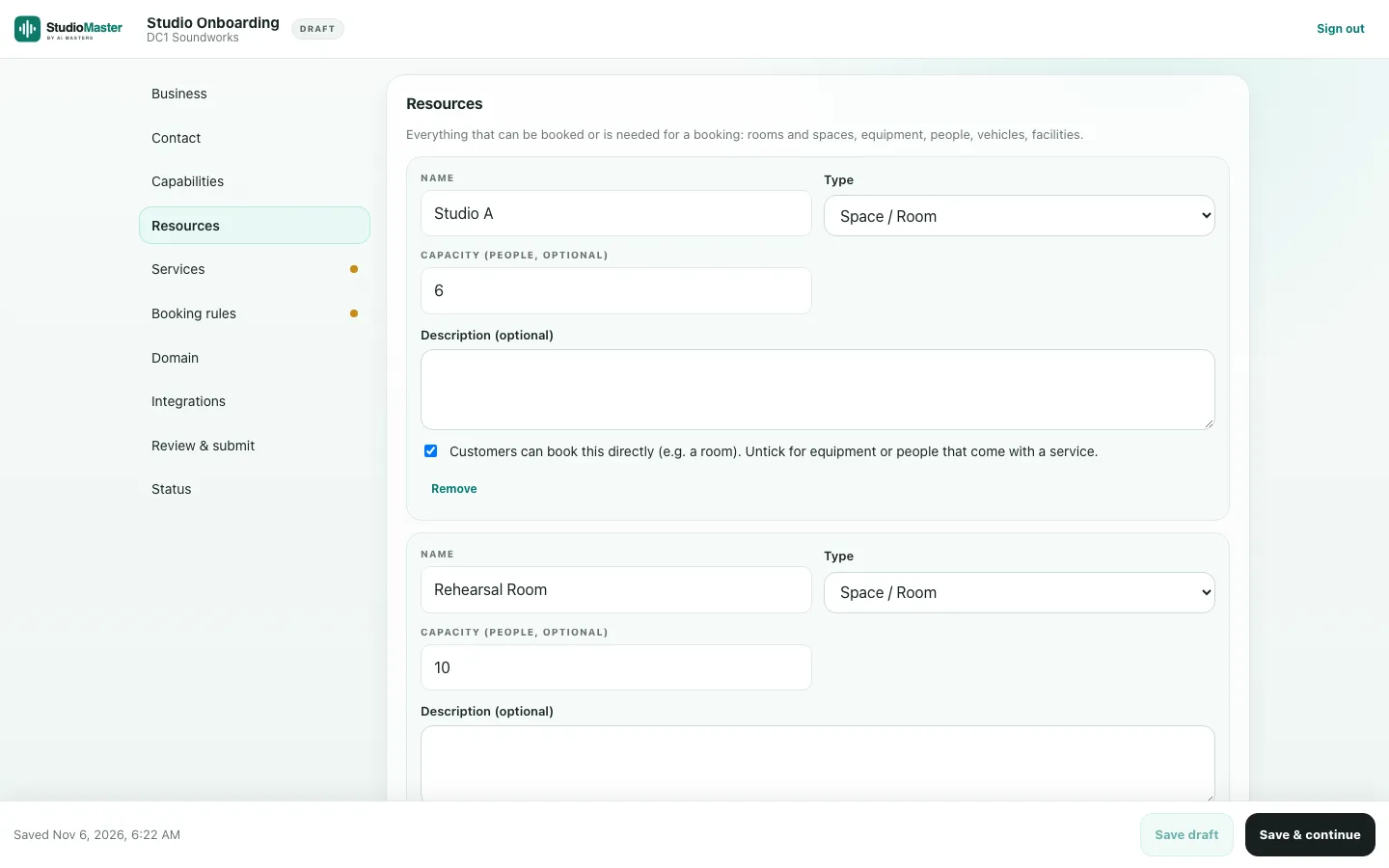
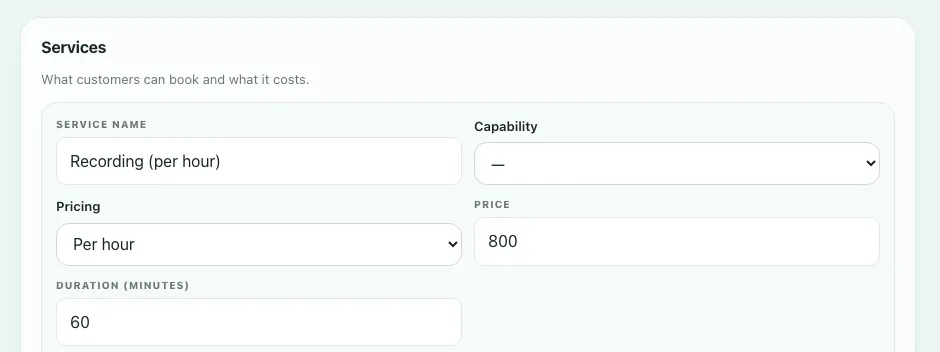
Invitation, then a guided form. The owner gets an invitation, sets a password and fills a simple step-by-step form: business, contact, rooms, services and prices, booking rules, logo and photo.
Screens: Onboarding, step 1, Onboarding, step 2, Onboarding, step 3
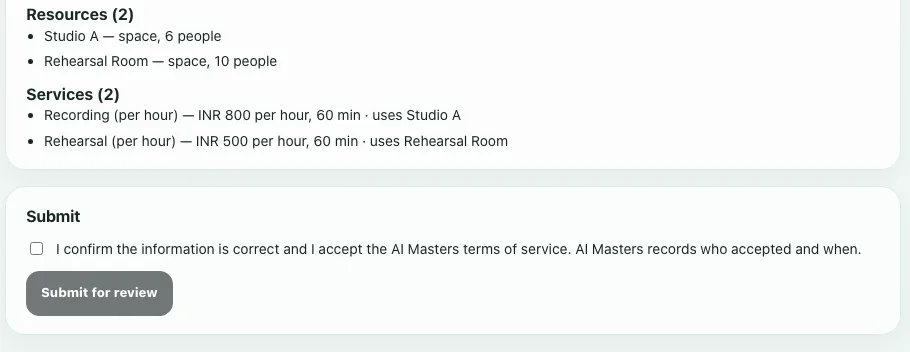
Saved as a draft; review and submit. The owner checks a summary and submits.
Screens: Review and submit, Onboarding, review
AI Masters approves, and the studio is live on its own web address.
Screen: Approval


Trust and reliability
One platform, many studios, kept apart. Each studio's customers, bookings and payments are separate; staff see only their own studio.
Secure HTTPS on every studio address.
Nightly backup of the live database, with a nightly restore test.
Built for India: rupees, UPI, Indian mobile numbers (+91), IST.
Accessible: AA colour contrast across the design system; real headings and visible focus.
Emails link back to the studio's own address (sign-up confirmation, password reset, staff invitation).
Ready to take bookings online?
Or write to support@aimastersindia.com